

Workflow Map: See Every Approval Route in Dynamics 365 F&O
Workflow Map draws the approval route of a document in Dynamics 365 Finance & Operations as one diagram you can read at a glance, instead of a long workflow history list. Before submission, it predicts the steps and approvers for this record. After submission, the Dynamics 365 workflow map shows who approved, who is pending and what happens next.
Why approvals in Dynamics 365 feel like a black box
Dynamics 365 workflows are powerful, but they are hard to read. As a result, users submit documents without knowing who will approve them, and then ask IT where the document is stuck.
Who will approve this?
Conditions decide the route, but nobody can see them from the document. Users guess, or ask an administrator.
Where is it stuck?
The workflow history is a flat list of tracking lines in time order. You read it line by line to find the open step and its owner.
Hidden delegations
A delegation or an escalation moves the work item to someone else. The requester rarely knows.
Complex configurations
Decisions, parallel branches, line-item workflows and subworkflows are only visible in the workflow editor.
Resubmissions get confusing
After a return or a change request, earlier rounds and comments mix with the current one.
Support tickets pile up
Every "where is my PO" question lands on the system administrator instead of being answered on the form.
DIAGRAM VIEW VS. WORKFLOW HISTORY
A diagram you read in seconds, not a history you have to decode
The standard workflow history lists tracking lines in time order. So users rebuild the route in their heads, line by line. Workflow Map draws the same data as a diagram instead: the route, the open step and its owner are visible at a glance.
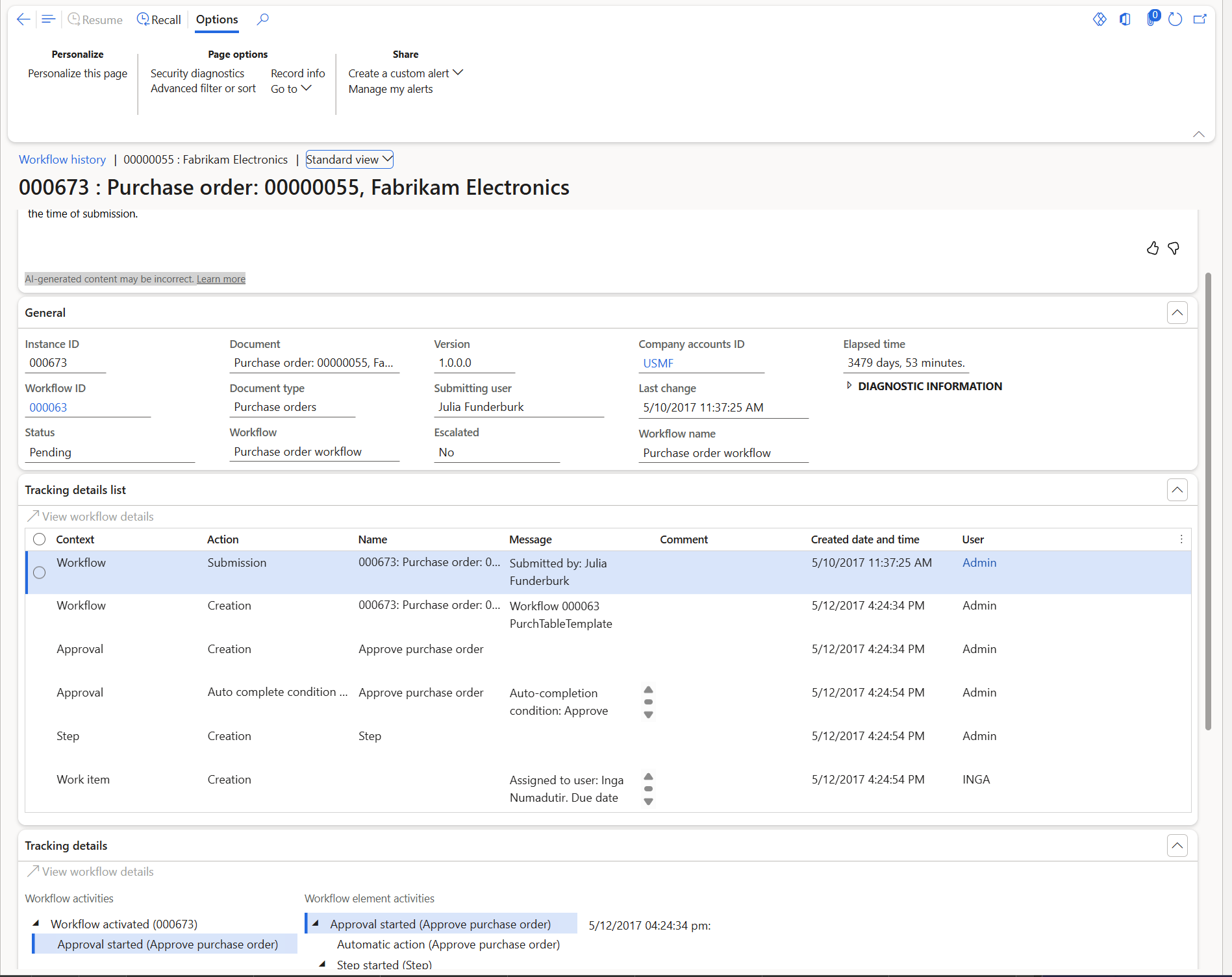
BEFORE A flat list in time order. You work out the route yourself.
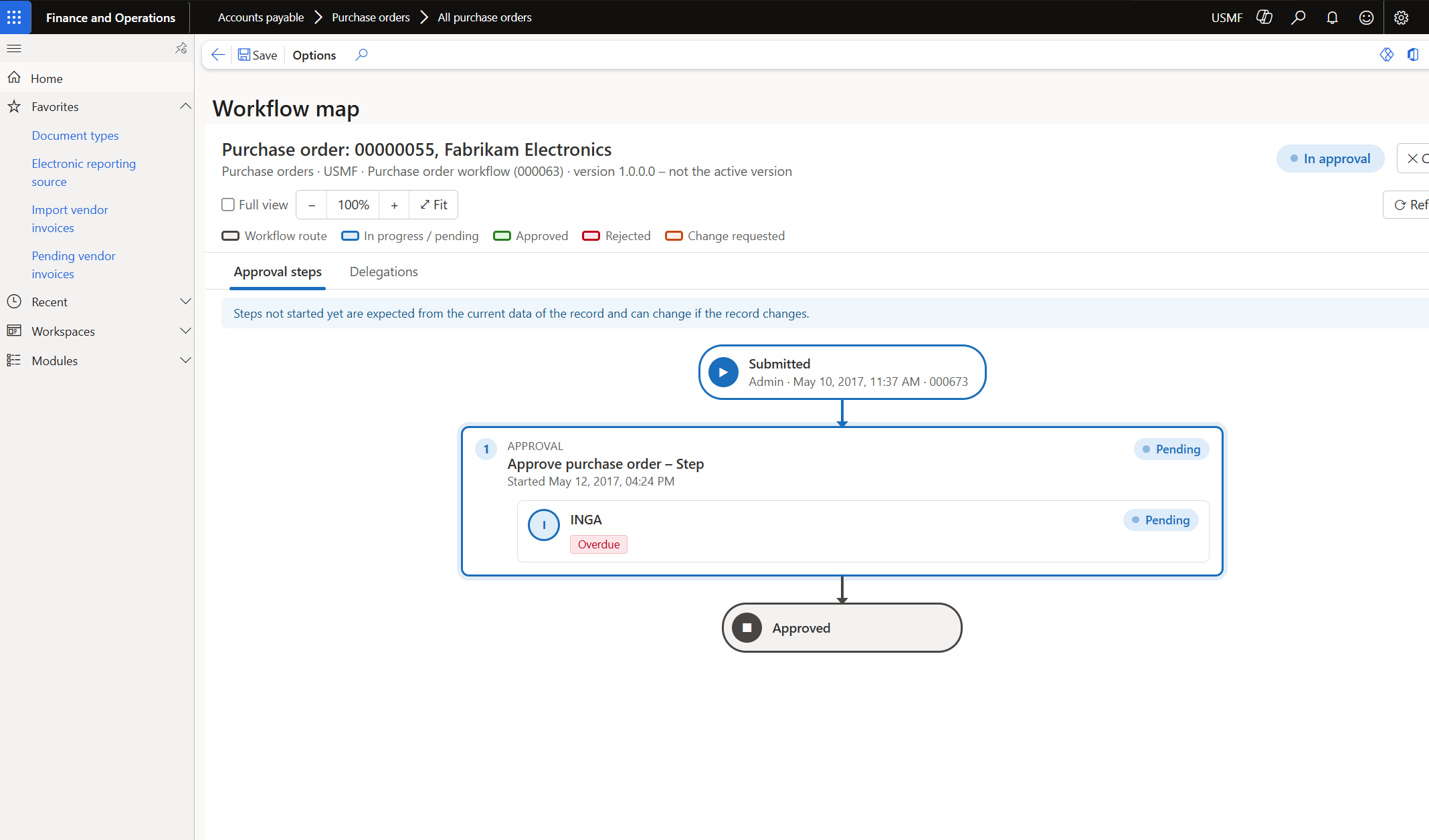
AFTER The same data as a diagram. Where it is, who has it, what comes next.
SEE IT IN ACTION
One map, three moments of an approval
Workflow map opens from the Workflow menu of the document, so users never leave the form they work on.
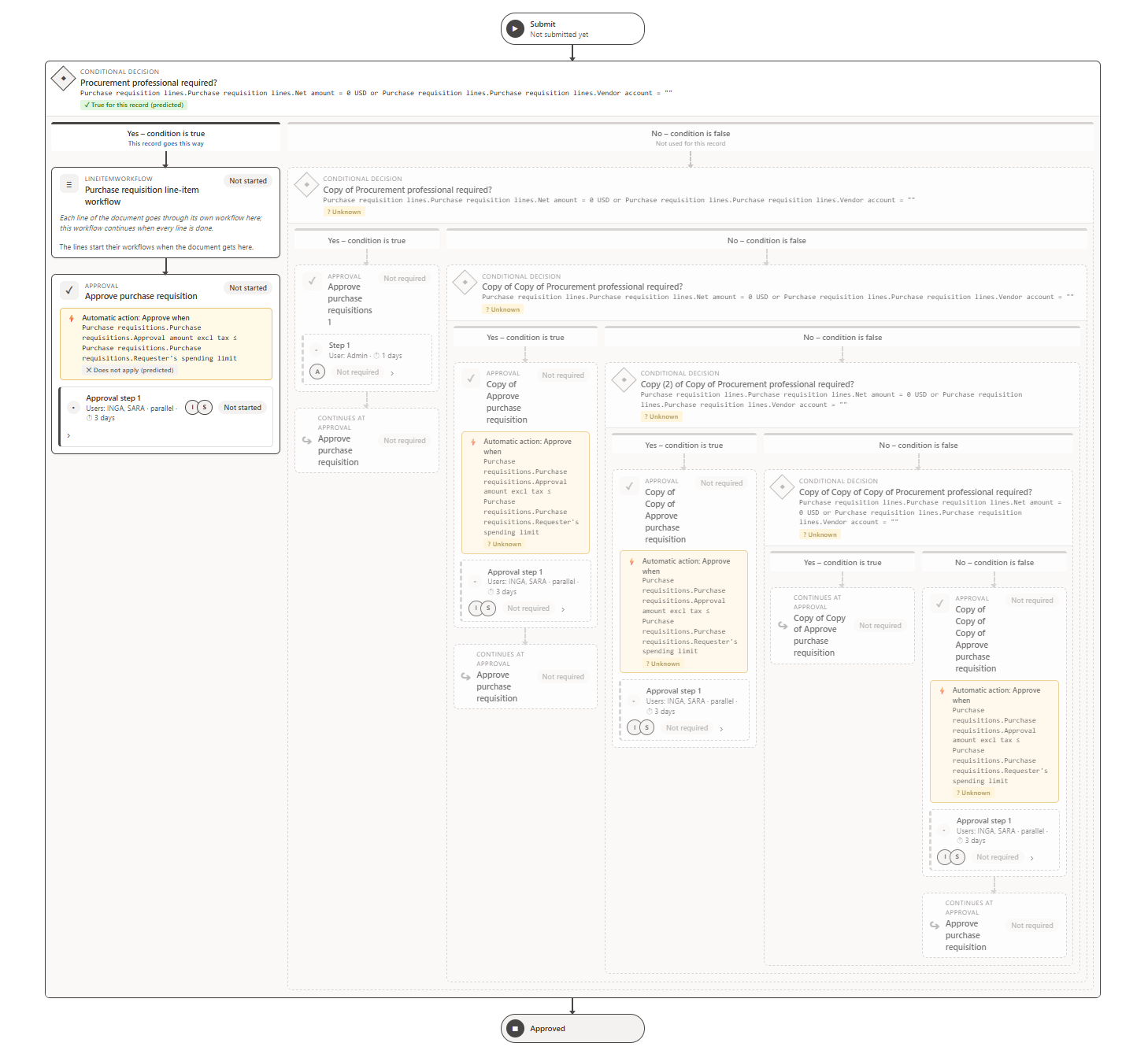
BEFORE SUBMISSION · FULL VIEW
Know the route before you press Submit
Open Workflow map on a draft document and see the whole workflow that applies to it. The map evaluates every condition against the document as it is now, with the same check the workflow engine uses. Therefore the route it highlights is the route the document will take.
- Conditions written in plain words, such as Total amount > 4,000.00 USD
- True or false for this record, on every decision
- Approvers resolved from hierarchy, user group, role or participant
- Steps that do not apply are marked, and can be hidden
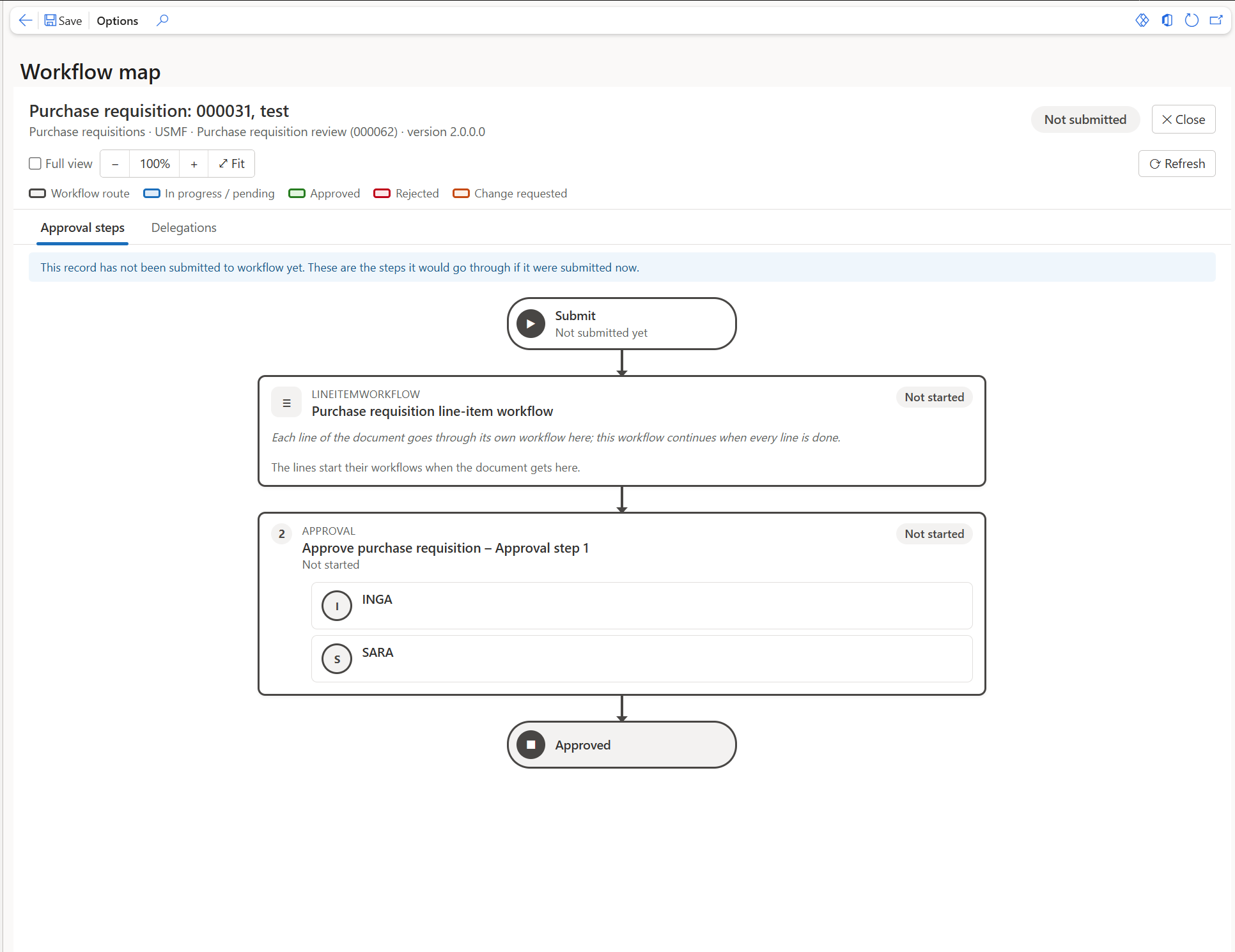
SIMPLIFIED VIEW
A clean view for requesters and approvers
Most users don’t need conditions and decisions. Turn on the simplified view in the parameters, and the map shows only the approval and review steps, the people involved and when each step started. In addition, delegations and escalations stay visible.
- Only approval and review steps
- People, start dates, delegations and escalations
- Set once for all users in Workflow map parameters
- Power users switch to the full view with a separate privilege
AFTER SUBMISSION · LIVE PROGRESS
Follow the approval as it happens
Once the document is submitted, the diagram turns into a live tracker. Nobody has to scroll the workflow history to find the open step. Instead, each box shows its status, and each approver shows the action, the date and the comment. You can also switch between earlier submissions of the same document.
- Approved, pending, rejected, change requested, returned, skipped
- Due dates, time limits, overdue and escalated work items
- Work items taken from a queue, claimed or delegated
- Full history with comments, round by round
Key features
Everything the workflow history holds, and more, drawn as one diagram instead of a list.
Predicted route
Conditions are evaluated against the current data of the document, so the map shows the route before submission.
Every element type
Approvals, reviews, tasks, automated tasks, conditional and manual decisions, parallel branches, line-item workflows and subworkflows.
Real approvers
Users found from the hierarchy, user groups, roles and participant providers, with the completion policy of each step.
Delegations and escalations
Active delegation rules, escalation paths, time limits and overdue work items, on the step where they apply.
History on the diagram
Each action and comment sits on the step it belongs to, grouped by submission round, instead of in a separate list.
Full or simplified view
A full view for administrators and a simplified view for everyone else, controlled by security privileges.
Built for big workflows
Zoom, fit to window, expand and collapse all. Shared steps are drawn once, and the other routes point to them.
One click from the form
Added to the Workflow menu of every workflow-enabled form, and to drop dialogs such as All purchase orders.
Security built in
Separate duties to view the map, view it in full and maintain its parameters.
How the Dynamics 365 workflow map works
Open a document
Purchase order, vendor invoice, journal, requisition or any document with a workflow.
Click Workflow map
From the Workflow menu. The map opens in its own window, next to the document.
Read the diagram
Follow the route top to bottom: steps, conditions and approvers, before or after submission.
Act with confidence
Fix the data before submitting, chase the right approver or check a delegation.
READ-ONLY BY DESIGN
Safe to add to any workflow setup
Workflow Map only reads. It uses the standard workflow configuration and tracking tables, and it evaluates conditions through the same API as the workflow engine. Consequently, it never changes your workflows, your documents or their approvals. It also depends only on the Application Platform and Application Foundation models, so it stays light on every update. Learn more about the workflow system in Dynamics 365 on Microsoft Learn.
Need a workflow built or fixed first? Our Dynamics 365 customization team designs approval workflows that people can actually follow.
Frequently asked questions
Which documents does the Dynamics 365 workflow map support?
Any document with a workflow in Dynamics 365 Finance & Operations: purchase orders, purchase requisitions, vendor invoices, general journals, expense reports and your own custom workflow types. The command appears on every form that shows the standard Workflow menu.
Can users see the route before they submit?
Yes. Before submission, the map evaluates each condition against the current data of the document and highlights the route it will take. If a condition can’t be evaluated, the map says so instead of guessing.
Does it change our workflows or approve anything?
No. Workflow Map only reads. It doesn’t change workflow configurations, work items or documents, and it doesn’t approve, reject or delegate on anyone’s behalf.
Can we hide conditions and decisions from normal users?
Yes. Turn on the simplified view in Workflow map parameters. Users then see only the approval and review steps. Users with the full view privilege can still switch to the full map.
Is it safe for One Version updates?
Yes. It is a separate model that only reads standard workflow data, and it depends only on the Application Platform and Application Foundation models. Read how we keep all our add-ons upgrade-safe.
See your own approval routes on a map
Bring a purchase order or a vendor invoice workflow from your system. We’ll show you its map before and after submission, in 30 minutes.