
In the last part, we walked through the steps for setting up and managing projects in Dynamics 365 F&O.
In Dynamics 365 F&O, every project begins with a clear structure. The work breakdown structure organizes tasks, timelines, and cost categories so project managers have a dependable framework to plan and deliver work. When combined with accurate budgeting, forecasting, and time-entry processes, it supports consistent tracking across the entire project lifecycle.
For organizations that depend on reliable cost control and strong forecast project management, these tools help maintain visibility and stability as a project progresses. The sections below outline how these elements are set up and managed inside Dynamics 365 F&O.
1. Working with the Work Breakdown Structure (WBS)
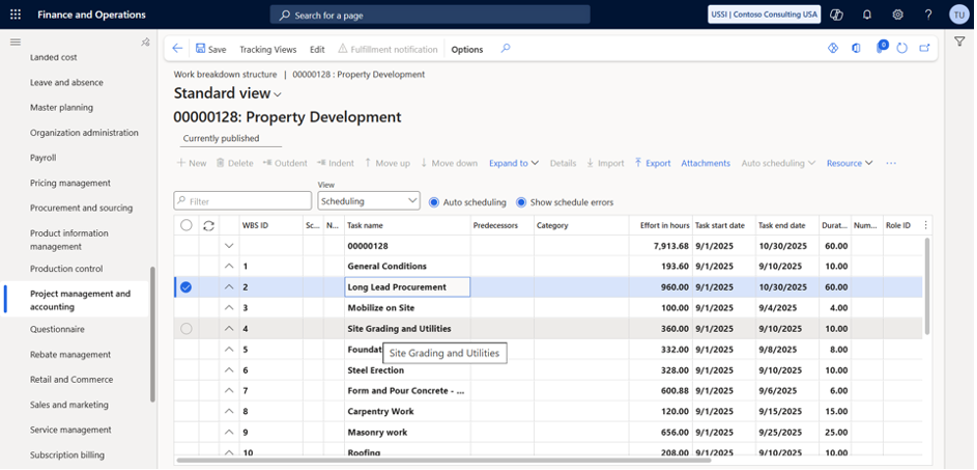
The work breakdown structure is the foundation of detailed project planning. It divides the project into structured tasks and supports scheduling, costing, and resource allocation.
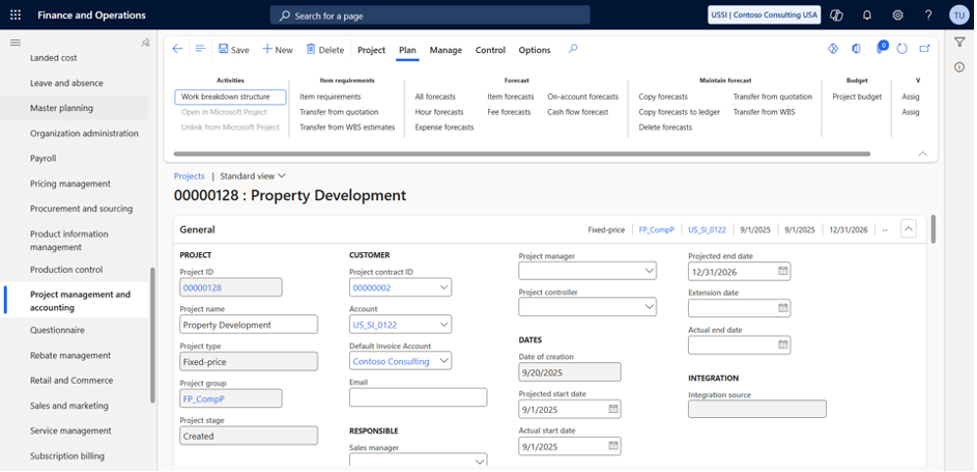
How to Open the WBS
Go to: All Projects → Select a Project → WBS
Once opened, the work breakdown structure displays a task hierarchy that can be expanded, edited, or assigned to resources. This structure becomes the base for scheduling and estimating project financials.
2. Work Breakdown Structure (WBS) Templates
WBS Templates provide a repeatable framework for new projects. By standardizing common task structures, teams reduce setup time and improve consistency across engagements.
Navigation: Project Management and Accounting → Setup → Projects → Work Breakdown Structure Templates
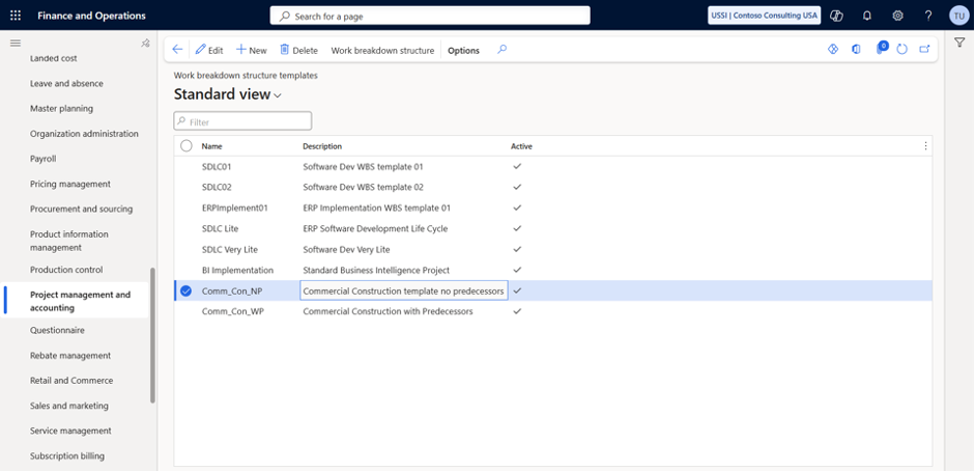
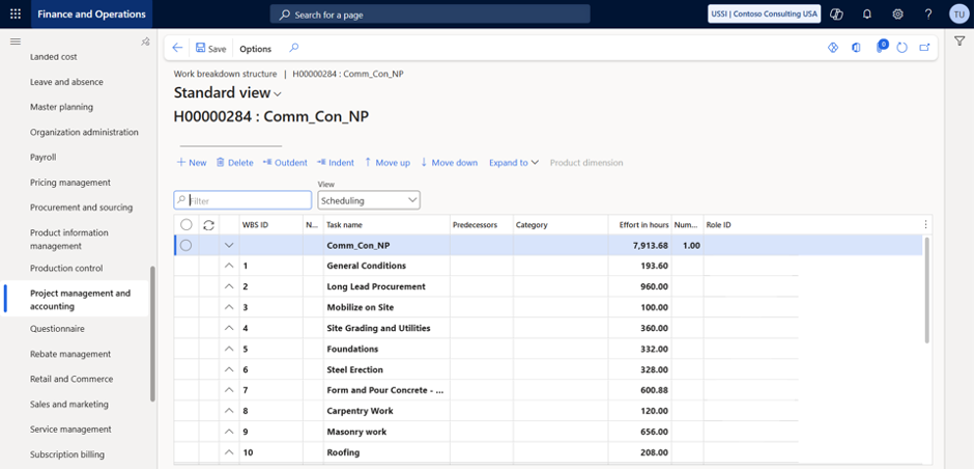
What WBS Templates Support
- Project quotation creation
- Standardized task definitions
- Building new WBS structures
- Resource allocation and scheduling
- Budget and cost estimation
Steps to Create a WBS Template
- Open WBS Templates
- Enter template details
- Add tasks to define the work breakdown structure
- Assign resources and cost categories
- Save and publish
Templates streamline planning and ensure project structures follow organizational standards.
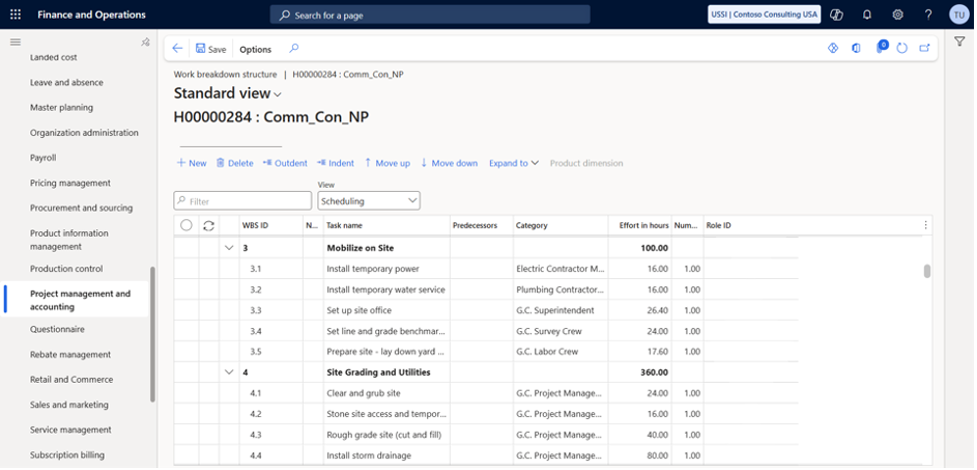
3. Project WBS Scheduling View
The Scheduling View focuses on structuring the timeline of the work breakdown structure. It visualizes how tasks relate to one another and helps plan work realistically.
Scheduling View Capabilities
- Set task start and end dates
- Build task dependencies
- Allocate resources based on availability
- View task hierarchy and sequence
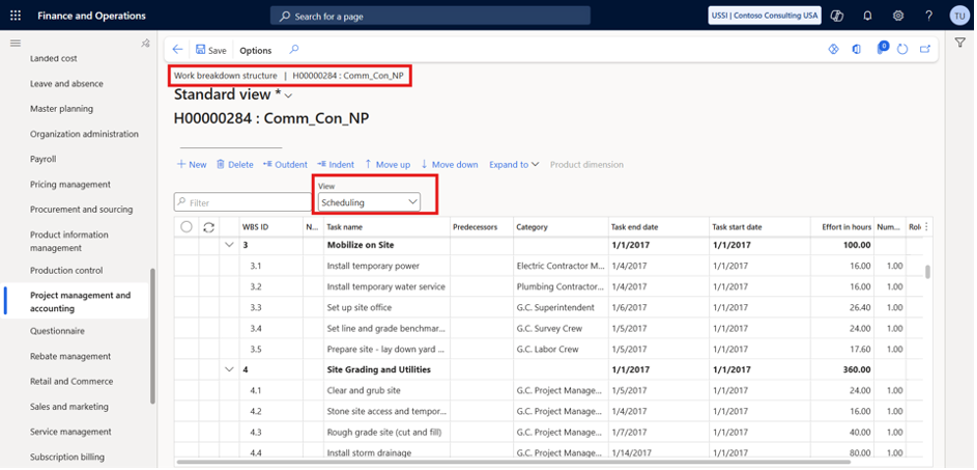
This view supports accurate timeline planning and keeps scheduling aligned with resource capacity.
4. Project WBS Cost Estimate View
The Cost Estimate View supports financial planning within the work breakdown structure, aligning budgeting with project tasks.
Key Functions
- Assign cost categories (labor, materials, expenses)
- Estimate and track costs
- Review cost variances
- Integrate with project categories for accurate GL postings
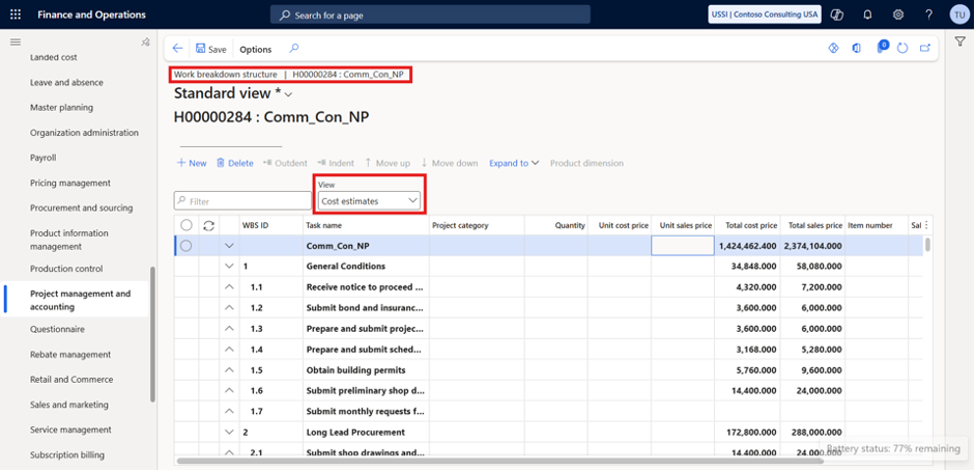
This view is essential for cost accuracy and supports strong forecast project management by tying estimates directly to tasks.
5. Project Forecasts and Budgets
Dynamics 365 F&O offers two approaches: project forecasts and project budgets. Each plays a different role in financial planning.
Choosing Between Forecasting and Budgeting
| Approach | Best For | Description |
| Project Forecasts | Operational needs | Reflects transaction-level detail and supports granular forecast project management |
| Project Budgets | Financial governance | Workflow-driven, streamlined budget entry and revisions |
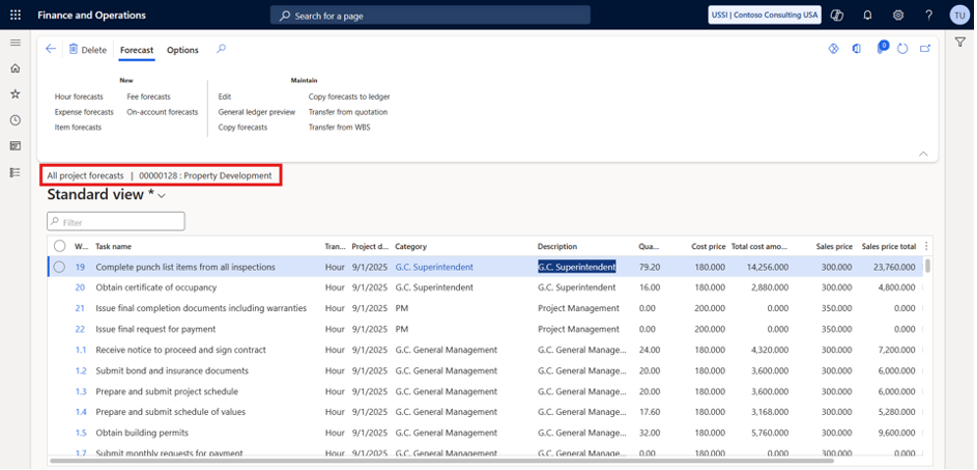
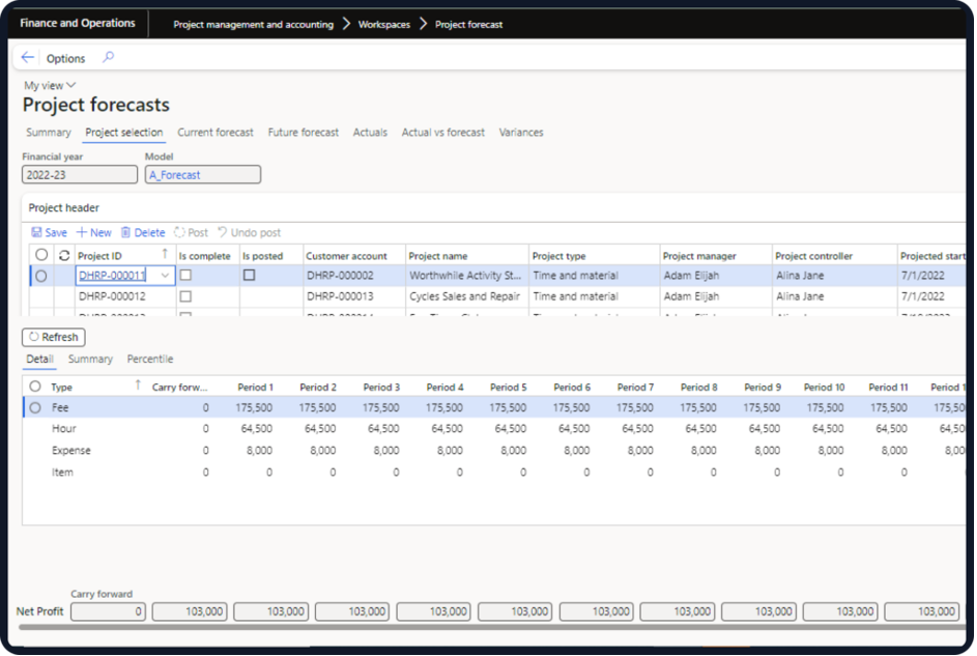
Project Forecasts
Forecasts allow project managers to enter projected transactions for each type of project cost or revenue. Forecast entries can include:
- Worker assignments
- Profitability lines
- Projected invoicing timelines
- Category and cost attributes
Forecasts are unit-based and amount-based, supporting detailed forecast project management.
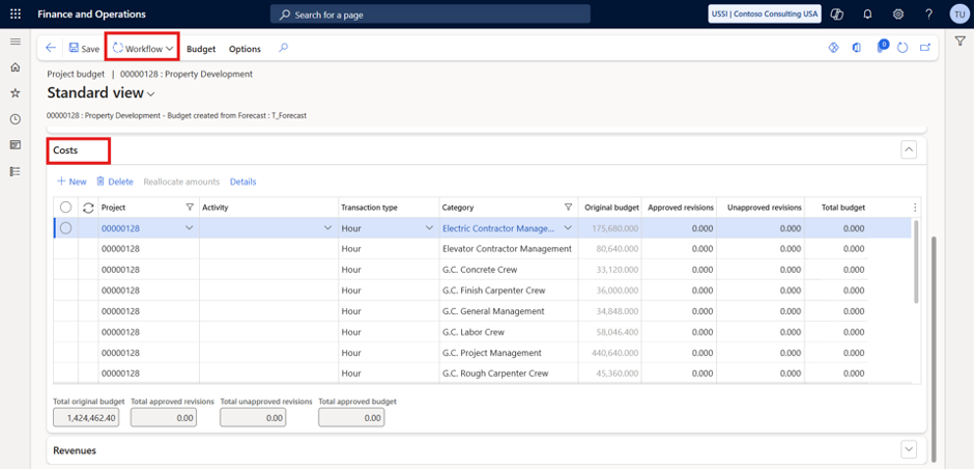
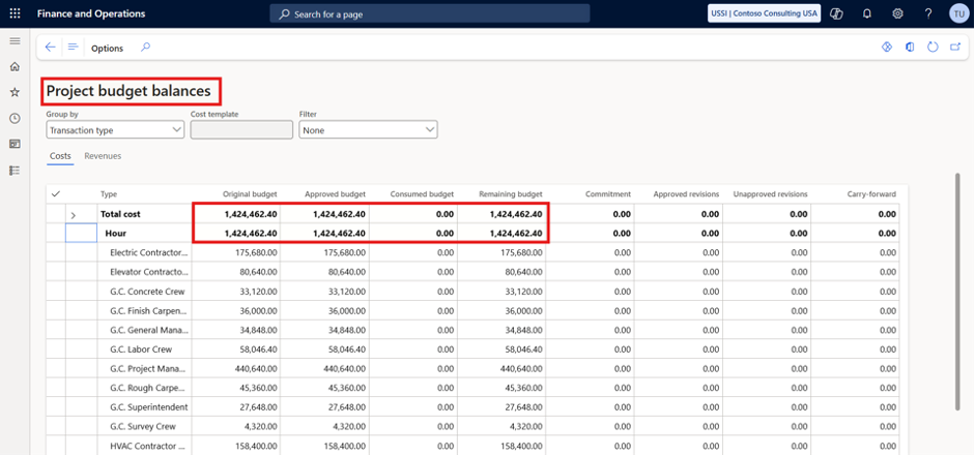
Project Budgets
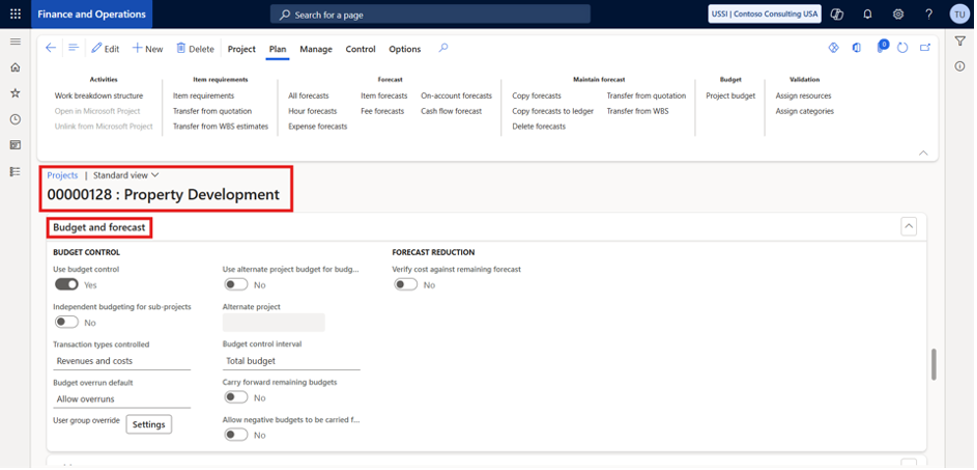
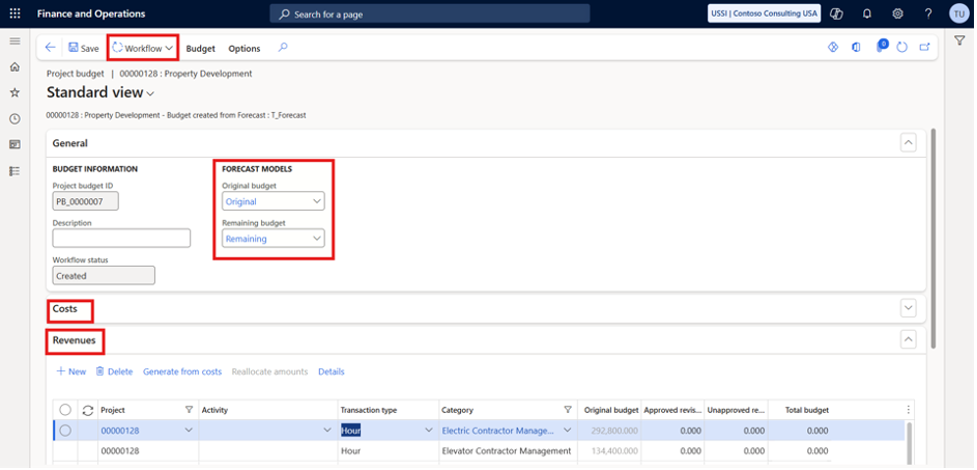
Project budgets offer a simplified financial planning method:
- One form for original budgets and revisions
- All changes require workflow approval
- Automatic links to two forecast models (original and remaining)
- When committed, budgets create forecast transactions for reporting
This method resembles general ledger budgeting but is faster to configure for project-based operations.
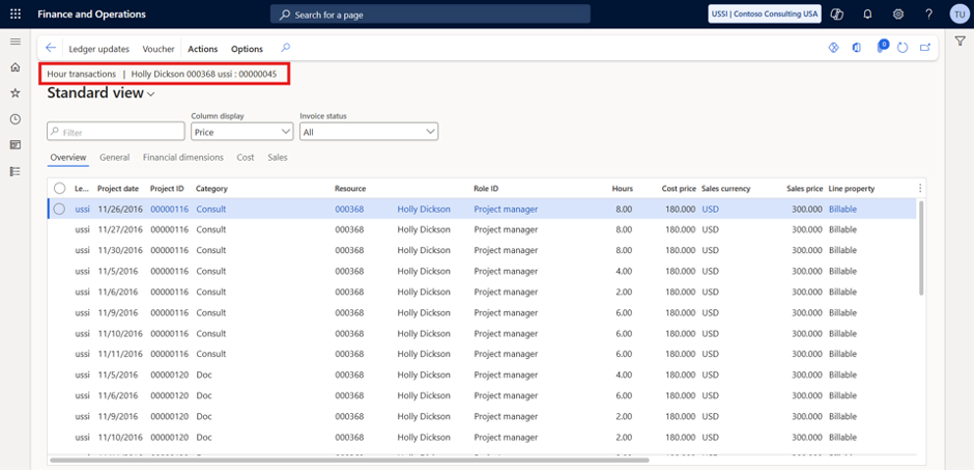
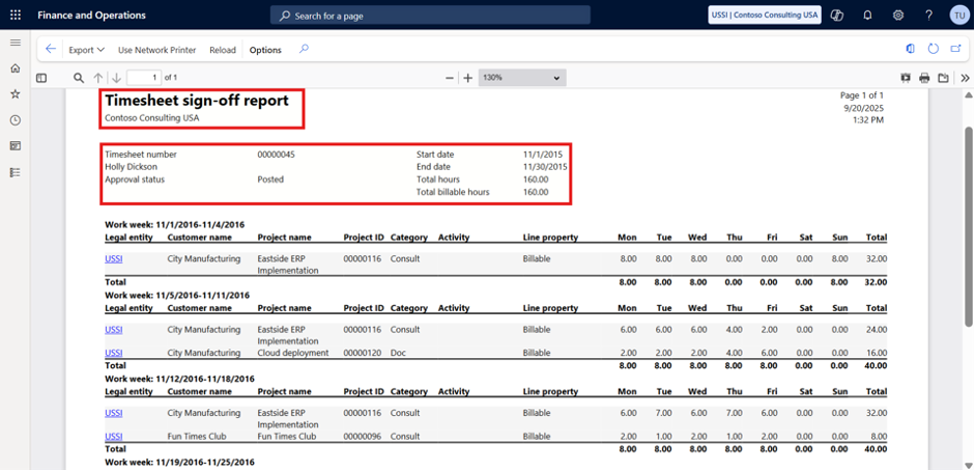
6. Creating Time Entries
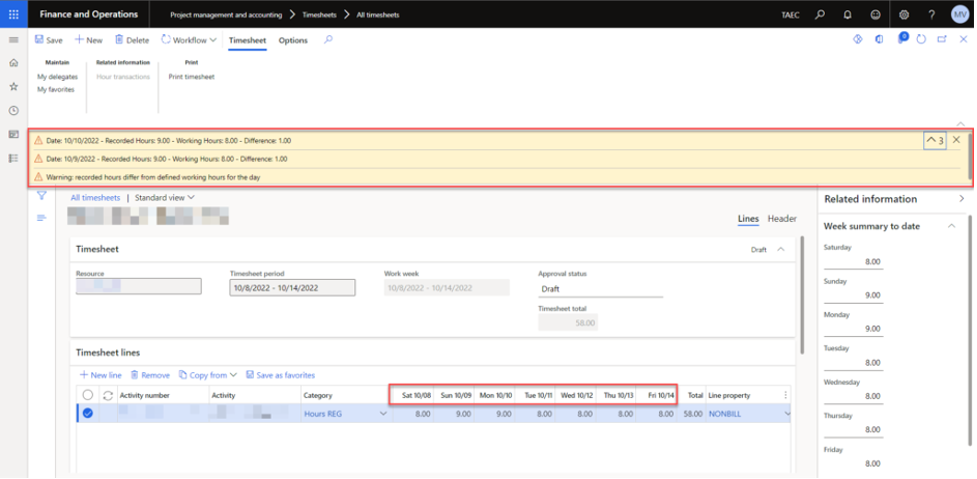
Time entries represent daily activity on the project and feed into costing, billing, and utilization tracking.

Time Entry Formats
- hh:mm format (converted to decimal hours)
- decimal hour format (e.g., 1.5 hours = 1 hr 30 min)
Importing Time Data
Time can be imported from:
- Project bookings
- Resource assignments
Users select a date range and choose which entries to convert into drafts.
Approvals
All pending approvals appear in the Processing Approvals view for managers to review.
7. Creating Expense Entries
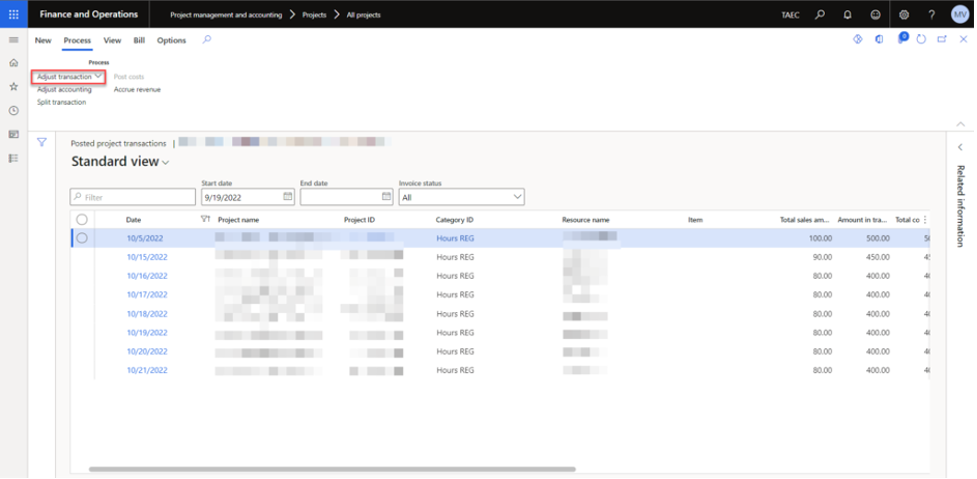
Expenses represent costs such as materials, travel, or fees. These entries can be captured through journals or through the Expense Management module.
Methods for Entering Expenses
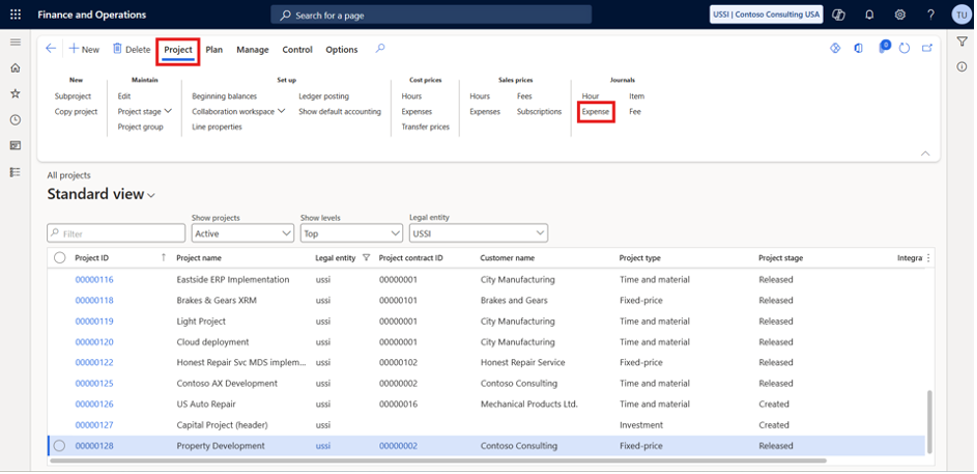
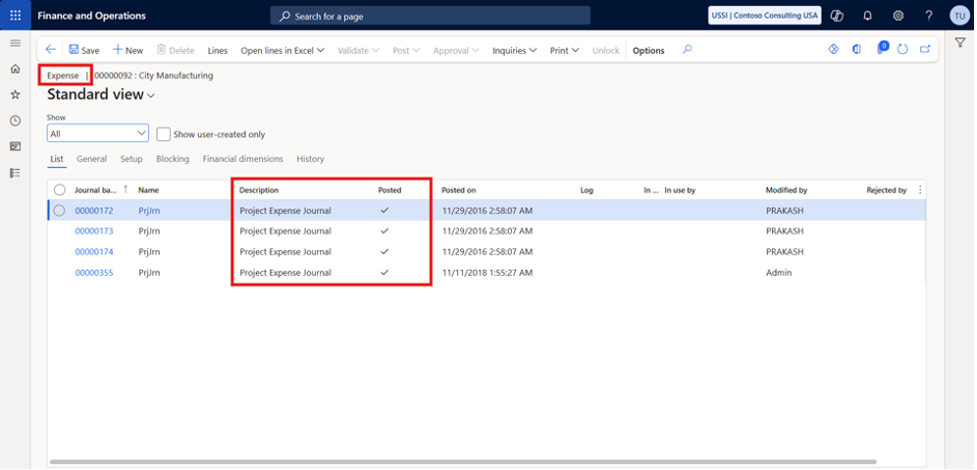
A. Using Journals
Record expenses using:
- Hour journals
- Item journals
- Expense journals
- Fee journals
B. Using Expense Management
Employees submit expenses using:
- Expense reports
- Time and Expense Agent (Outlook-integrated tools)
Posting and Viewing Expenses
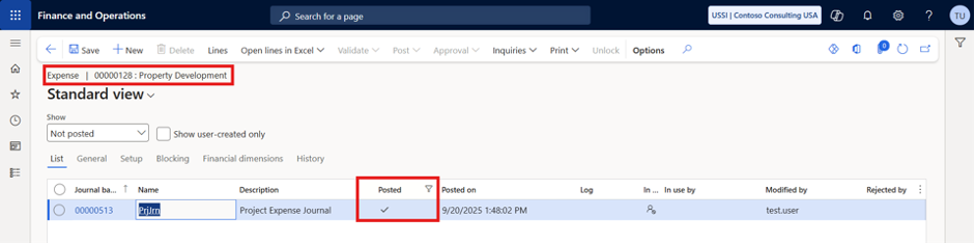
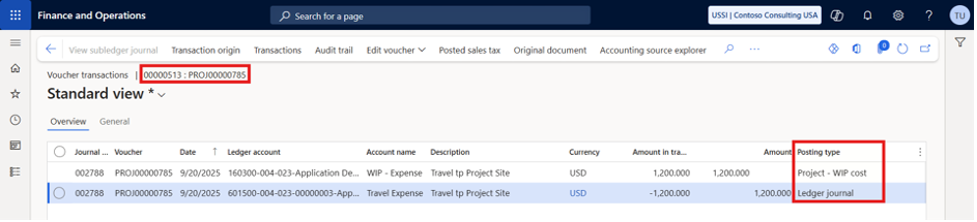
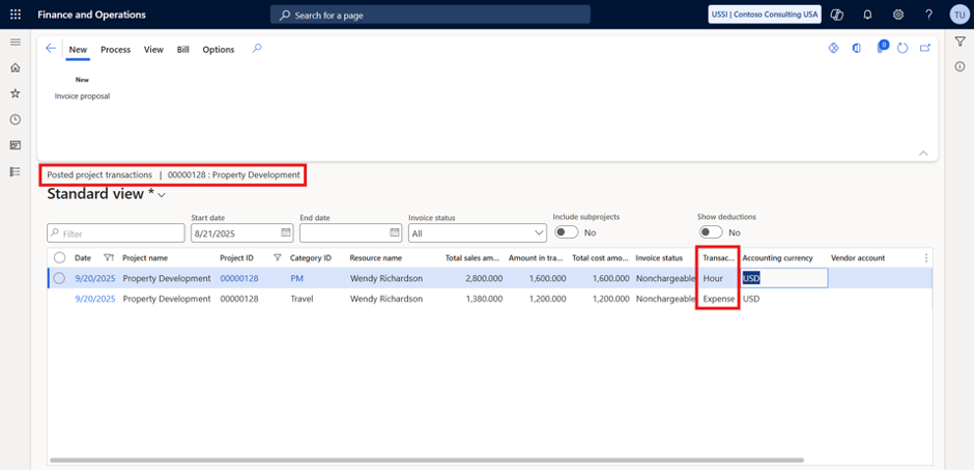
Once posted, entries appear under:
- Pending Transactions
- Posted Transactions
Invoicing Project Expenses
- Go to Manage
- Create an invoice proposal
- Approve the proposal
- Finalize and send the customer invoice
Supporting Modules
- Project Management Module – central hub for project costs and billing
- Expense Management Module – manages travel and employee expenses
- Journals – direct posting of project-related transactions
- Time and Expense Agent – automated time/expense capture
- Invoicing Tools – proposal creation and billing workflows
Conclusion
A structured work breakdown structure, accurate budget setup, and consistent time and expense entry process allow Dynamics 365 F&O to deliver clear, dependable project visibility. These elements work together to support predictable scheduling, reliable costing, and strong financial control.For organizations that rely on disciplined planning and effective forecast project management, these tools establish a repeatable framework that keeps every project aligned from planning through execution.
SysBrilliance assists organizations in configuring and optimizing these capabilities so that Dynamics 365 F&O supports the way their teams work, not the other way around.
The next article covers how to handle project purchase orders, accruals, and vendor invoicing inside D365 F&O.
