
Vendor e-invoicing is becoming a standard requirement across Europe, and e-invoicing for France, Belgium, and the UAE is no exception. For organizations using Microsoft Dynamics 365 Finance, Electronic Reporting (ER) provides a structured way to import vendor e-invoices directly into the system, reducing manual entry and improving accuracy.
This guide explains how vendor e-invoices for France can be imported into Dynamics 365 Finance using Electronic Reporting. It covers the ER components involved, the end-to-end import process, required master data, and how to configure SharePoint as a source for UBL invoice files. The outcome is a pending vendor invoice in Accounts Payable, ready for review and posting.
Overview of the Electronic Reporting Setup
The Electronic Reporting configuration described here is designed to import vendor invoices from SharePoint into Dynamics 365 Finance as part of France e-invoicing processes. While it is based on standard Microsoft ER configurations, it has been extended to support custom mandatory fields on pending vendor invoice lines.
The import process relies on structured data mapping rather than manual invoice entry. Once configured, Dynamics 365 Finance can automatically collect invoice files, validate them against master data, and create pending vendor invoices in Accounts Payable, aligning with e invoicing in France requirements.
Understanding Electronic Reporting Components
Electronic Reporting uses a layered architecture, with each component playing a specific role in the import process. Understanding how these layers work together makes troubleshooting and configuration much easier.
Data Model
The data model defines the abstract structure of the data, including fields, containers, and relationships. It acts as the contract between the incoming file format and the destination in Dynamics 365 Finance.
Format
The format defines the structure of the incoming file, such as XML, JSON, or Excel. In this scenario, the format supports UBL-based vendor invoices for France e-invoicing.
Mapping to Destination
The mapping connects data model fields to their destination tables and entities in Dynamics 365 Finance. Vendor invoice headers are written to the VendInvoiceHeaderEntity, while invoice lines are written to the related VendInvoiceLineEntity. This mapping is what ultimately creates the pending vendor invoice in the system.
How the Vendor Invoice Import Process Works (Microsoft Documentation)
When a vendor invoice file is imported, Dynamics 365 Finance follows a defined sequence of validation and matching steps. Each step determines whether the invoice can be processed successfully or whether warnings or errors are raised as part of e-Invoicing in France.
Vendor identification
Vendors are identified using the tax-exempt number defined on the vendor record. If no matching vendor is found, the import fails, and an error message is displayed.
Product identification
Invoice line products are identified using external item numbers, which may be vendor-specific. If no matching product is found, the import fails, and once again, a realred error message will be displayed.
Unit of measure validation
Units of measure are matched using external unit codes. If a matching unit is not found, the import fails.
Purchase order matching
If the incoming vendor invoice file includes purchase order references, Dynamics 365 Finance uses these values to match the invoice to existing purchase orders and their related lines.
The purchase order number is read from the header-level XML element:
- Invoice\cac:OrderReference\cbc:ID
Invoice lines are matched to purchase order lines using:
- Invoice\cac:InvoiceLine\cac:OrderLineReference\cbc:LineID
When these elements are present, the system matches the invoice and its lines to confirmed purchase orders in the system.
Automatic matching
If no order references are provided, the system attempts to automatically match the invoice to confirmed purchase orders using product purchase prices.
No purchase order found
If no purchase order is found, a warning is raised, but the import continues. The invoice lines are treated as non-stock items. Therefore, the system expects that these products belong to an item model group where the Stocked product checkbox is cleared on the Inventory policy page.
Default item handling
If no non-stock products exist, the system uses a default item with the code DEFAULT_ITEM. This product must belong to an item model group where the Stocked product option is disabled.
Tax calculation
Taxes are calculated within Dynamics 365 Finance based on imported data and tax setup. Tax amounts are not imported as fixed values and can be adjusted manually if required.
File attachments
File attachments included in the vendor invoice are supported during the import process. Attachments are read from the following XML element:
- Invoice\cac:AdditionalDocumentReference
All attached files must include a valid file extension. If an attachment does not have an extension, Dynamics 365 Finance raises a warning and skips the attachment, while the rest of the invoice continues to import.
Expectation
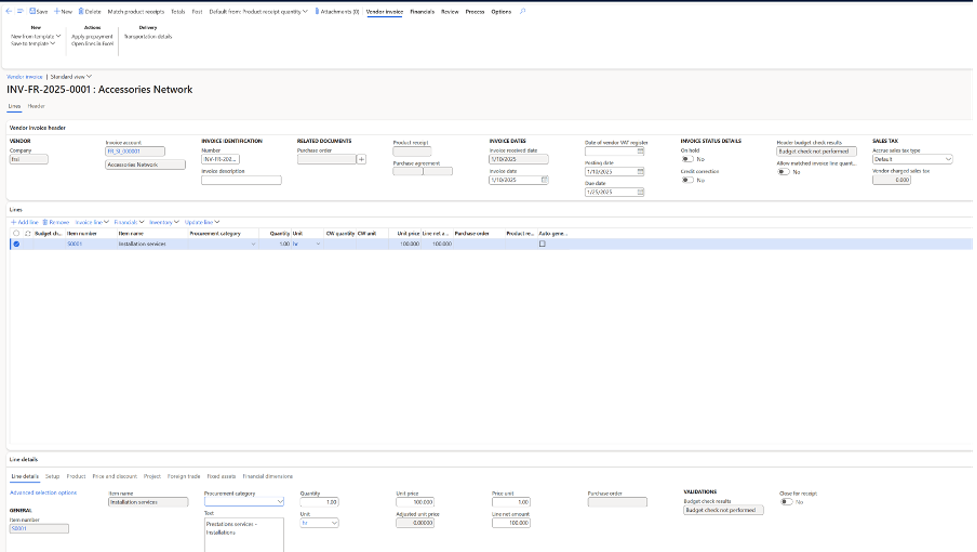
After a successful import, the vendor invoice is created in Dynamics 365 Finance as a pending vendor invoice. It can be reviewed and processed under:
- Accounts payable > Invoices > Pending vendor invoices
At this stage, the invoice is available for validation, approval, and posting according to standard Accounts Payable workflows.
Prerequisites Before Importing Vendor E-Invoices
Before running the import, specific master data must be configured correctly in Dynamics 365 Finance. Missing or incomplete setup at this stage is one of the most common causes of import failures when implementing France e-invoicing.
Vendor Tax-Exempt Number
The vendor tax-exempt number is used to identify vendors during the invoice import process.
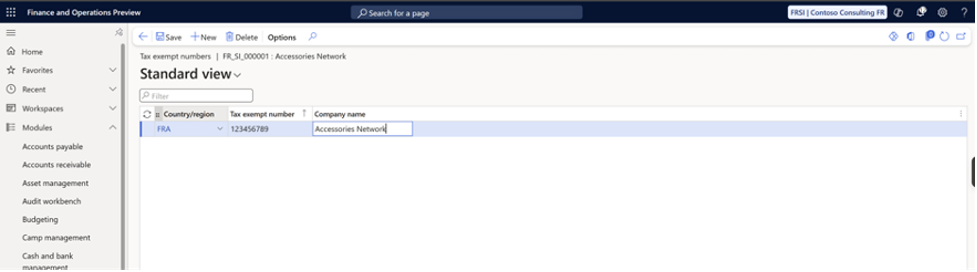
This value must be populated on the vendor record. Without it, the system cannot determine which vendor the invoice belongs to.
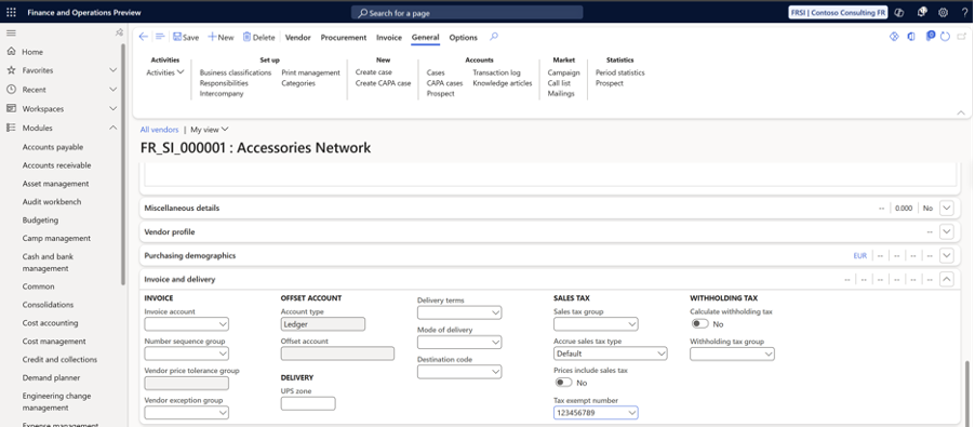
Edit vendor showing Tax exempt number
External Item Codes
External unit codes are used to map vendor-specific unit of measure codes to internal units in Dynamics 365 Finance.
To configure this, navigate to:
- Organization administration > Setup > Units
Select the relevant unit of measure and configure the required values using the External codes option.
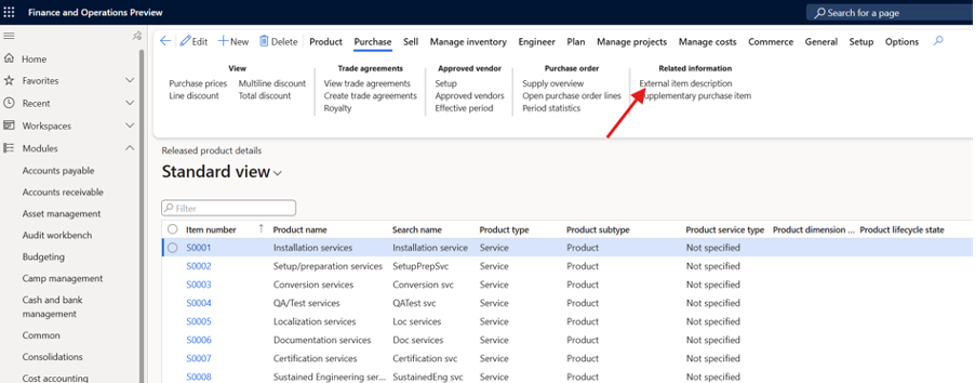
Released product form > External item description
In the External item descriptions form, configure the mapping between vendor and external item number:
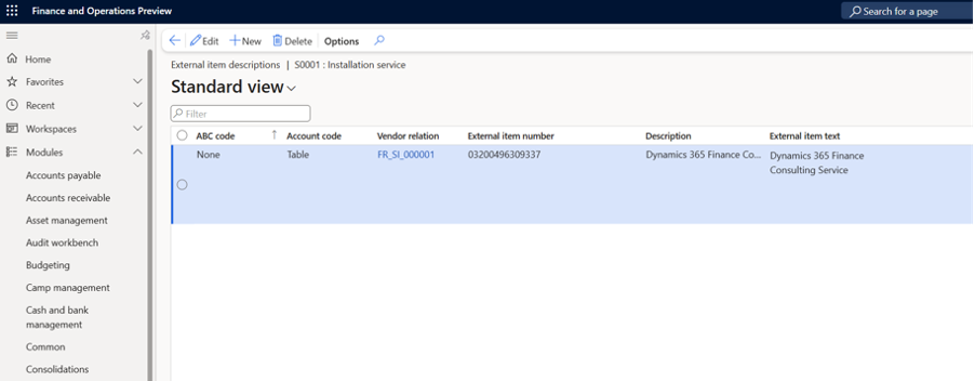
External item descriptions showing vendor-specific item number
External Unit Codes
External unit codes allow vendor-specific unit of measure codes to be mapped to internal units in Dynamics 365 Finance.
Go to:
- Organization administration > Setup > Units
Select the relevant unit of measure and use External codes to define the vendor-specific mappings.
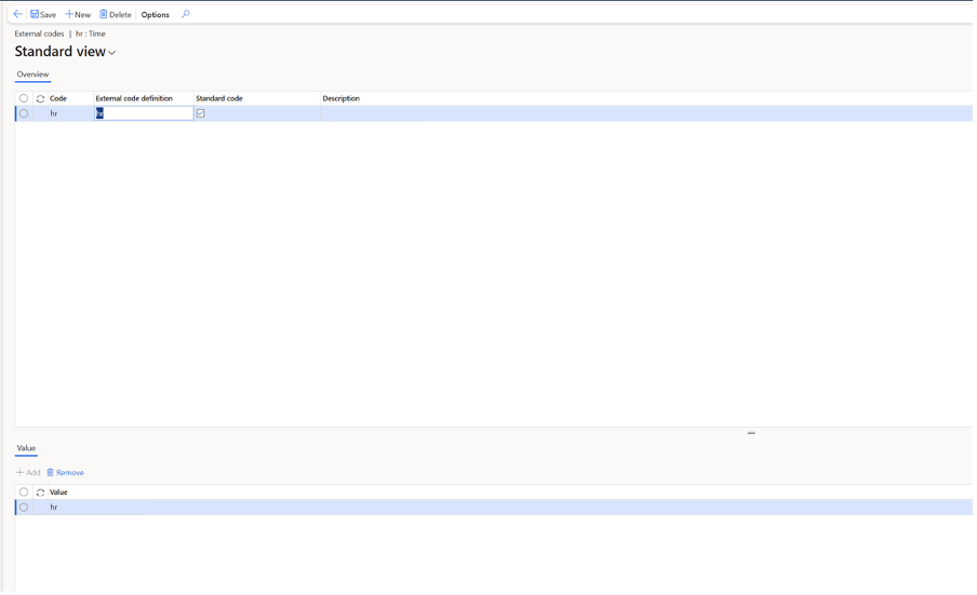
Units form with External codes button highlighted
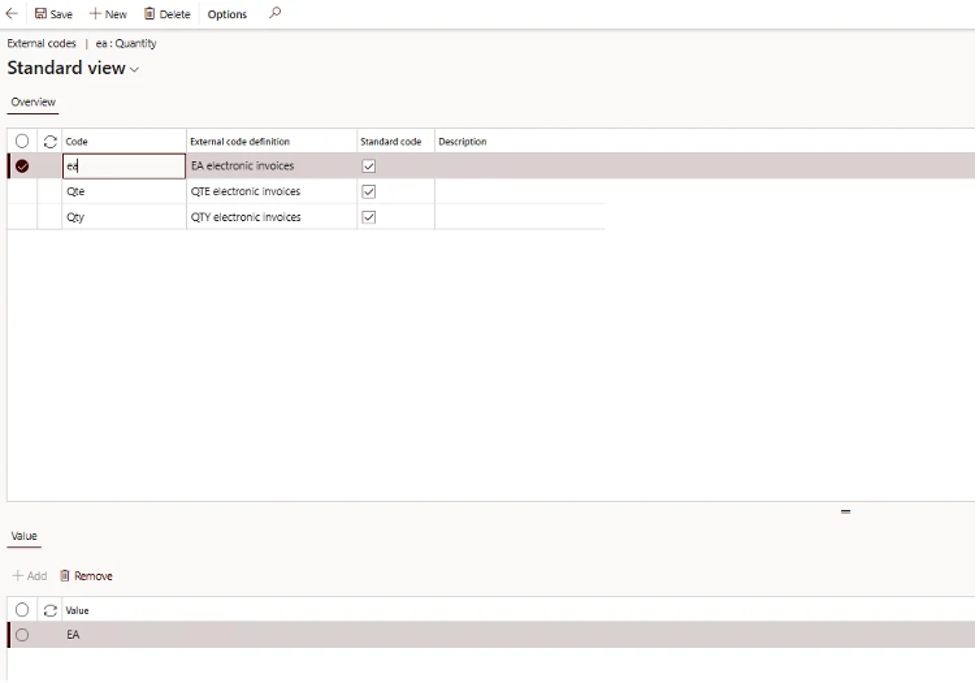
Purchase Order References
When invoices include purchase order references, Dynamics 365 Finance uses the order number and line references from the invoice file to match the invoice to confirmed purchase orders. This enables accurate three-way matching and reduces manual reconciliation.
Configuring Vendor Electronic Invoice Import for France
To support vendor e-invoices for France, the appropriate ER configurations must be imported and activated.
Start by navigating to Workspaces > Electronic reporting > Repositories and opening the Dataverse configuration repository.
Configuration repositories showing Dataverse repository
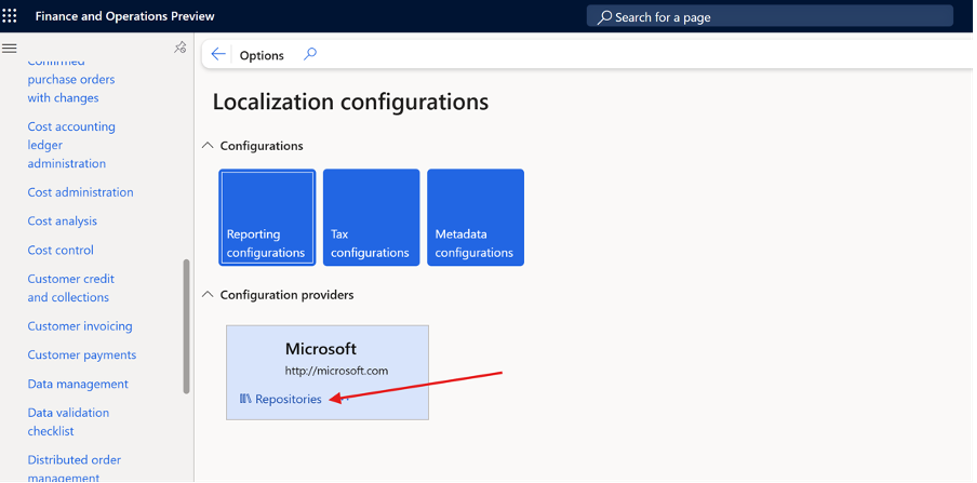
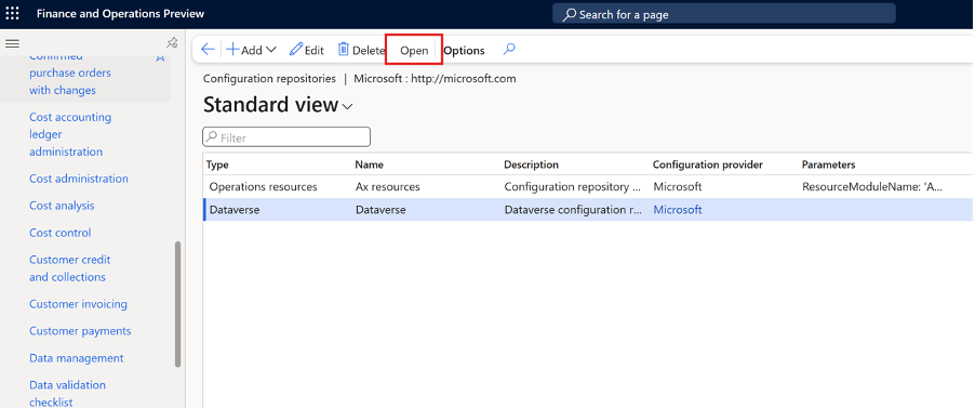
From here, import the required Invoice model and related configurations. Using the Import option in the Versions section allows you to select a specific configuration version if needed.
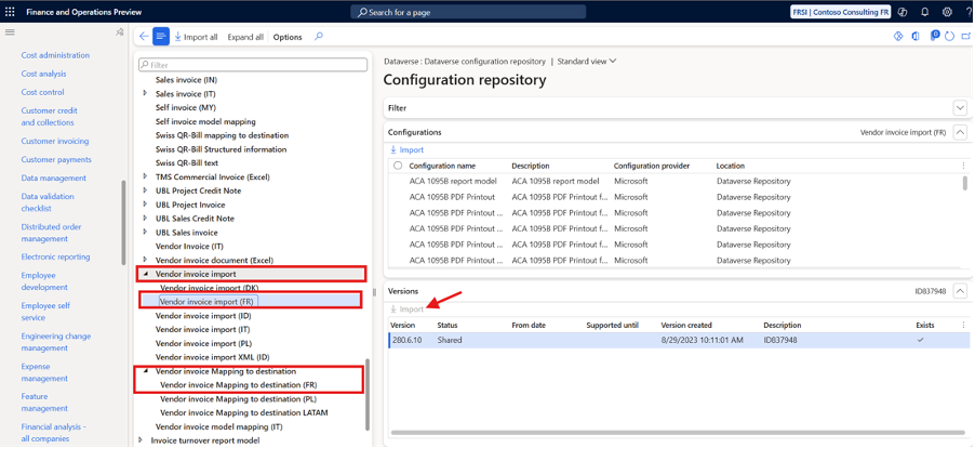
How to import Vendor invoice import (FR) ER Configurations for France
Once imported, the vendor electronic invoice import configurations for France will appear in your list of ER configurations.
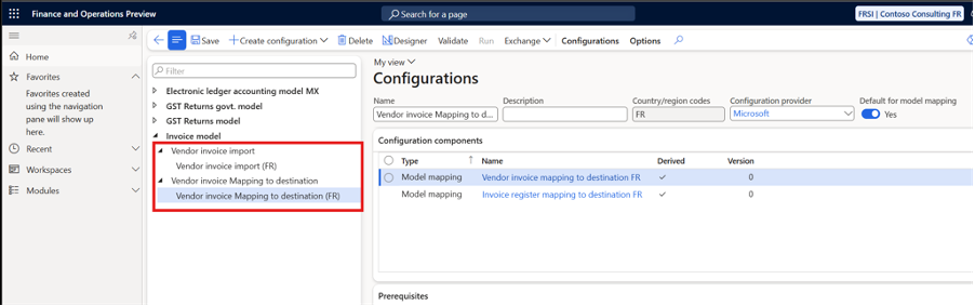
Showing imported vendor electronic invoice import ER configurations for France
How to Import UBL Vendor Invoices from SharePoint
One supported approach for vendor invoice import is using SharePoint as the source location for UBL invoice files. Dynamics 365 Finance can connect directly to SharePoint and retrieve files automatically.
In addition to SharePoint-based imports, vendor invoice files can also be retrieved from an SFTP server using the SysBrilliance SFTP add-on. This is commonly required when vendors or external platforms deliver invoices via SFTP rather than SharePoint or APIs.
Once retrieved, the invoice files can be processed using Electronic Reporting, resulting in a pending vendor invoice in Accounts Payable.
SharePoint Folder Structure
Create the following folder structure in SharePoint:
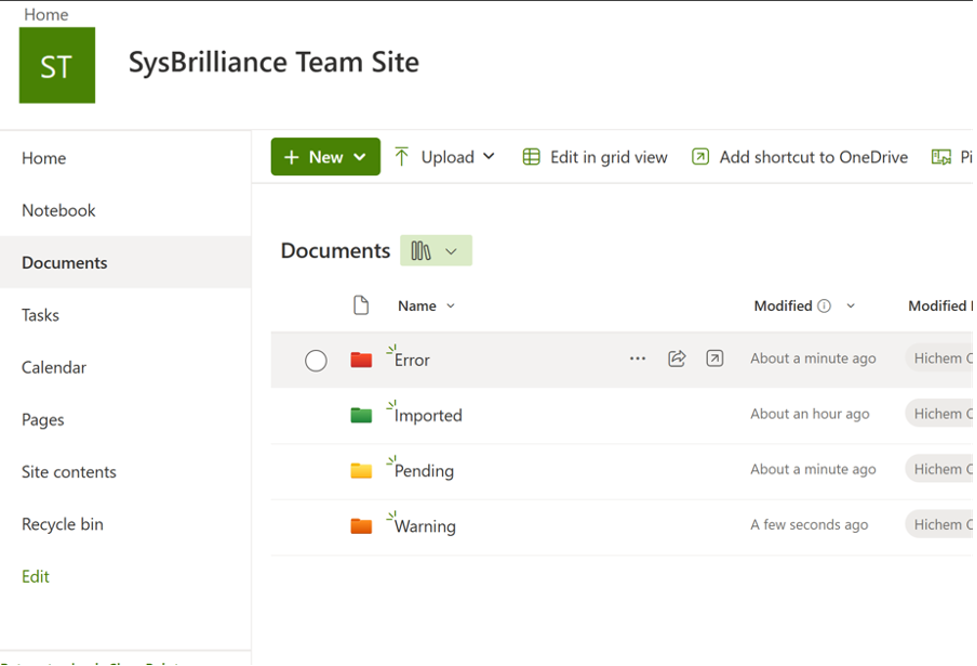
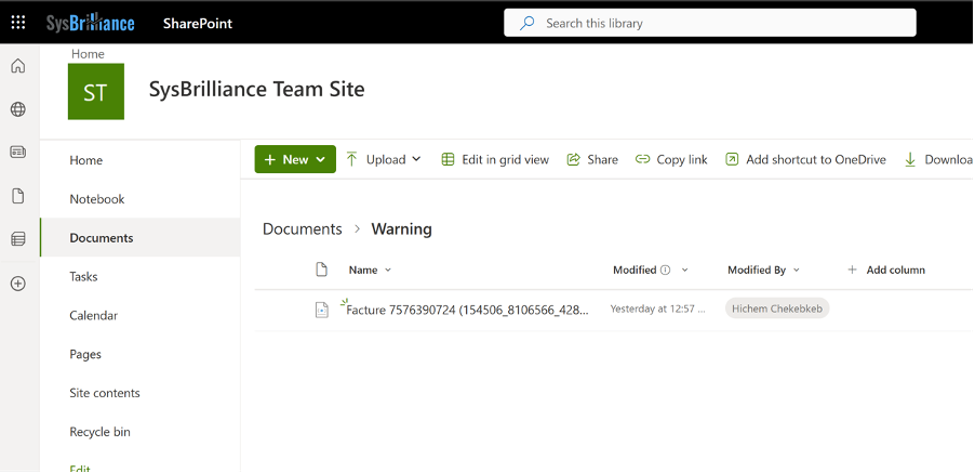
SharePoint folders – Error, Imported, To import, Warning
Each folder plays a role in tracking the status of imported files.
Document Types Configuration
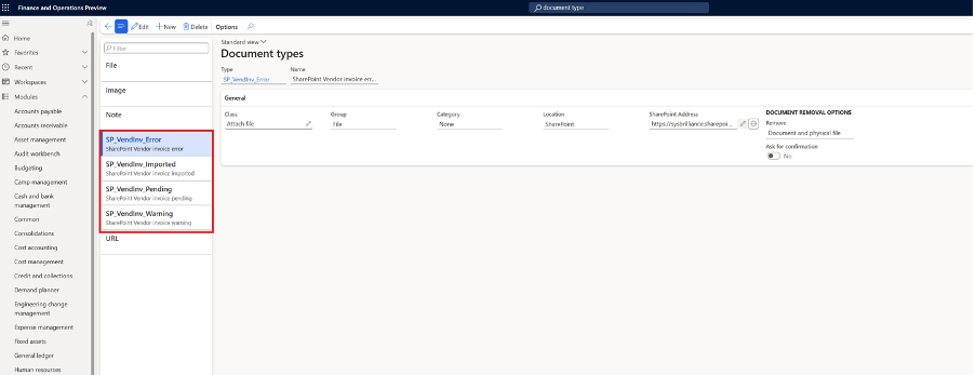
The next step is to set up document types in Dynamics 365 Finance, with one document type created for each of the four SharePoint folders.
In this example, the configuration is shown for the Imported folder, and the same approach should be applied to the remaining folders.
Navigate to:
- Organization administration > Document management > Document types
Create and configure a document type for each folder to support the vendor invoice import process.
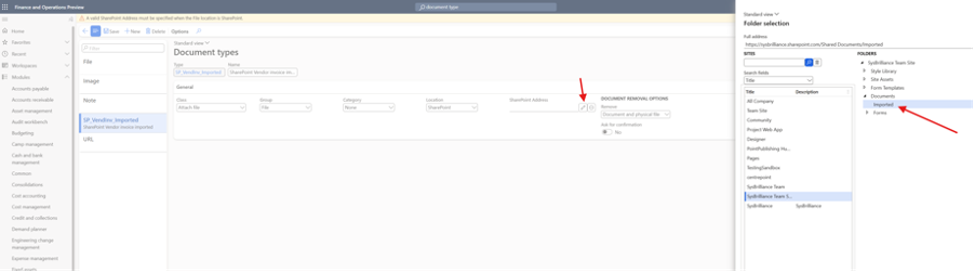
Document types for Vendor invoice import SharePoint folders
Configuring Electronic Reporting Source for Vendor Invoice Import
Search for the Electronic reporting source in Dynamics 365 Finance and create a new source configuration. Select the Vendor invoice import (FR) format and add a file source. Click on Settings to map the document types you created in the previous step, as shown below.
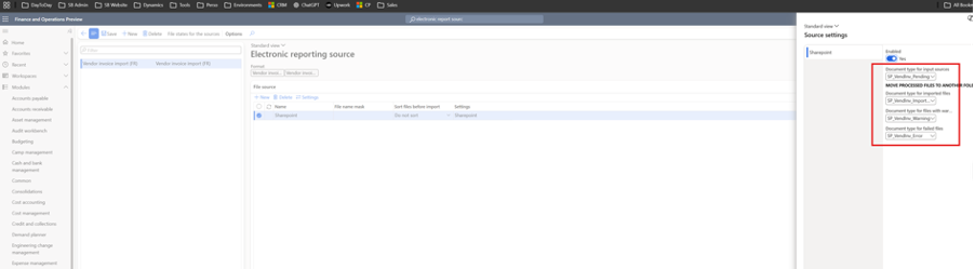
Electronic reporting source configuration
In the source settings, map each SharePoint folder to its corresponding document type.
Set the Default Mapping for Vendor Invoices in Accounts Payable Parameters
Set the default vendor invoice mapping in Dynamics 365 Finance to ensure imported invoices are processed correctly within Accounts Payable.
Navigate to:
- Accounts payable > Setup > Accounts payable parameters > Electronic documents
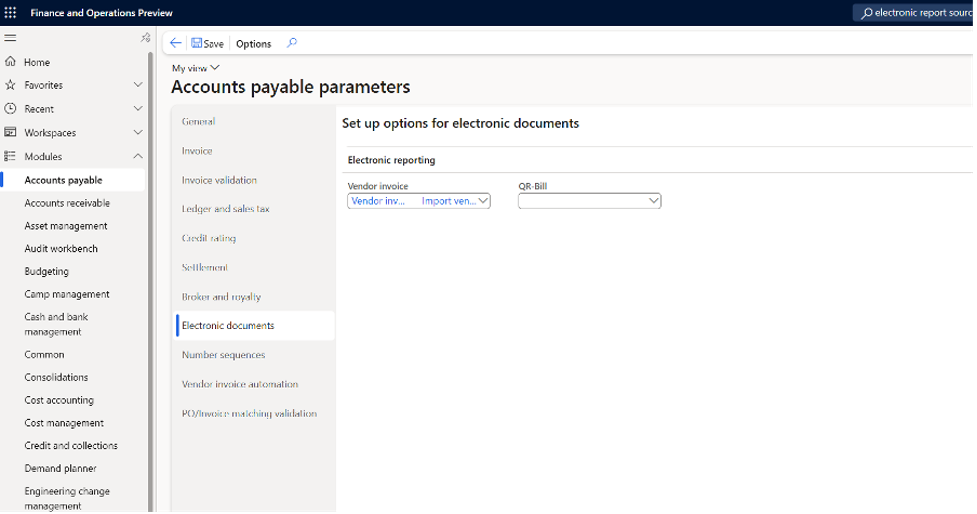
AP parameters electronic documents setup
This configuration determines how imported vendor invoices are handled once they enter the Accounts Payable workflow.
Run the Electronic Invoice Import Batch Job
Search for the Imported Vendor Invoice in the Dynamics 365 Finance search bar and find the said batch job.
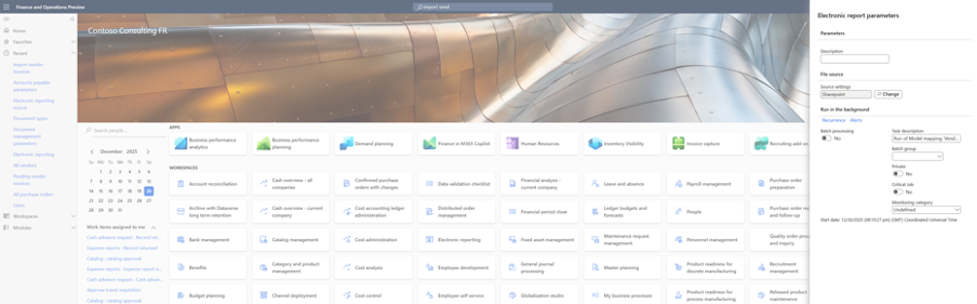
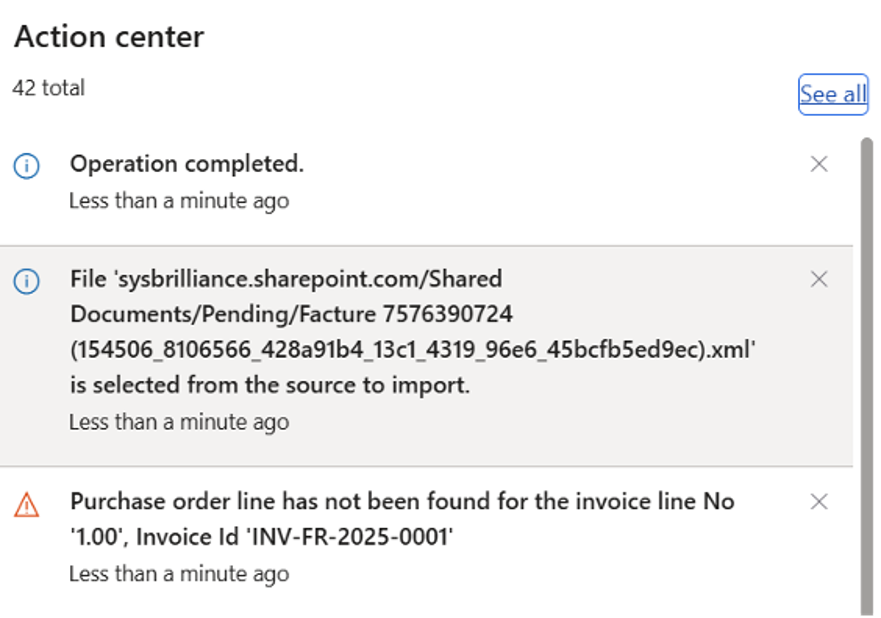
And here is our vendor pending invoice waiting for our approval and posting!
Since the import has issued a warning, we can see that the file has been moved to the Warning folder.
Final Outcome
When the configuration and master data are correctly set up, vendor e-invoices for France can be imported reliably into Dynamics 365 Finance. The result is a pending vendor invoice that reflects the original invoice data, supports attachments, and aligns with tax and matching rules defined in the system.
For organisations implementing or refining e-invoicing in France using Dynamics 365 Finance, Sysbrilliance supports ER configuration, SharePoint integration, and validation of vendor invoice import processes to ensure compliance and smooth Accounts Payable operations.
