
Belgium’s and France’s electronic invoicing framework requires sales invoices to be generated in a PEPPOL-compliant UBL format. Dynamics 365 Finance supports this requirement through Electronic Reporting (ER), enabling compliant electronic invoices to be generated directly from posted customer invoices.
This guide outlines the configuration steps needed to export sales electronic invoices for Belgium and France, including Electronic Reporting setup, master data requirements, identification logic, and SharePoint export configuration.
Import the Required Electronic Reporting Configurations
Before sales electronic invoices can be generated, the required Electronic Reporting configurations must be imported.
Navigate to Workspaces > Electronic reporting.
Select Repository in the Microsoft tile, choose the Dataverse line, and then select Open.
Under the Invoice model, identify and import the following configurations:
- Invoice model
- Invoice model mapping
- PEPPOL Sales e-invoice
- PEPPOL Sales e-credit note
- Customer invoice context model
If the Project accounting module is used, also import:
- PEPPOL Project e-invoice
- PEPPOL Project e-credit note
These configurations define the data structure, mapping, and output format required for PEPPOL-compliant sales electronic invoices.
Configure the Address Structure
To configure the structure of the postal address and define all required elements, complete the following setup. This configuration ensures that address information is correctly structured before it is used in the electronic invoice output.
- Go to Organization administration > Global address book > Addresses > Address setup.
- Ensure that at least the following mandatory elements are configured:
- Country/region code
- Postal code
- City name
- Street
Configure Legal Entity Data
Before sales electronic invoices can be generated, the legal entity must be set up with complete and accurate master data. This information is used to identify the seller and populate required fields in the electronic invoice XML.
Enter the Address
The legal entity address is used when generating seller address details in the electronic invoice. To ensure this information is included correctly, configure a valid primary address for the legal entity.
To enter the legal entity address:
- Go to Organization administration > Organizations > Legal entities.
- Select the required legal entity.
- On the Addresses FastTab, add a valid primary address.
Verify the Seller’s Identification
To generate compliant electronic invoices, the seller must be correctly identified in the invoice data. Dynamics 365 Finance uses the legal entity’s VAT information to populate the seller identification in the electronic invoice XML.
To identify the seller using a value-added tax (VAT) number:
- Go to Organization administration > Organizations > Legal entities.
- Open the Foreign trade and statistics FastTab. In the INTRASTAT section, ensure that a valid value is entered in the VAT exempt number export field.
The VAT number entered here is written to the following XML element in the generated electronic invoice:
Invoice\cac:AccountingSupplierParty\cac:Party\cbc:EndpointID
This value is used as the seller’s identification during submission.
Note: The contact information for the legal entity is automatically retrieved from the related Person record associated with the current user in Finance.
Configure Customer Data
Customer master data is used to populate buyer details in the electronic invoice. Before exporting sales electronic invoices, ensure that each customer has a valid address and an assigned contact person.
Enter the Address
The customer address is included in the electronic invoice and is used to identify the buyer’s location. To ensure this information is populated correctly, configure a valid address for the customer.
To enter the customer address:
- Go to Accounts receivable > Customers > All customers.
- Select the customer.
- On the Addresses FastTab, add a valid address.
Enter the Contact Person
The contact person represents the buyer’s point of contact on the electronic invoice. This information is used during invoice generation and submission.
To define the buyer’s contact person:
- Go to Accounts receivable > Customers > All customers.
- Select the customer.
- On the Sales demographics FastTab, in the Primary contact field, select the person who is considered the buyer’s contact.
Note: All contact persons must already be defined for the customer. The selected contact must have a valid email address and phone number.
Verify the buyer’s identification
The buyer’s EndpointID is determined using a hierarchy of built-in registration numbers.
The system evaluates the available registration numbers in the following order:
If a Global Location Number (GLN) or EAN registration exists and is active, it is used as the customer’s EndpointID.
SchemeID: 0088
If no EAN registration exists, the system uses the active Enterprise ID registration.
SchemeID: 0208
If neither EAN nor Enterprise ID exists, the system uses the active VAT ID registration.
SchemeID: 9925
If no VAT ID exists, the system uses the tax-exempt number from the customer master data.
SchemeID: 9925
The resulting value is written to:
Invoice\cac:AccountingCustomerParty\cac:Party\cbc:EndpointID
This value is used as the buyer’s identification during submission.
Note: If the built-in registration numbers aren’t sufficient, you can redefine the default schema by following the configuration steps for the Buyer identification in the next section. You can define any schema from the list of allowed values Electronic Address Scheme (EAS). Otherwise, skip ahead to the configure units of measure section.
Configure Identification Schemas
Follow the steps in this section only if the default identification schemas for sellers or buyers need to be redefined.
Configure Electronic Document Properties
To configure electronic document properties, follow these steps.
- Go to Accounts receivable > Setup > Electronic document property types, and select New.
- In the Type field, enter CompanyEndpointType. Enter the value exactly as it appears here. This value is used for the Seller identification schema definition.
- Select Applicability to add an applicable table.
- On the Electronic document property type applicability setup page, in the Table name field, select the Legal entities table name.
- Save your changes, and return to the Electronic document property types page.
- Select New to create another electronic document property type.
- In the Type field, enter CustomerEndpointType. Enter the value exactly as it appears here. This value is used for the Buyer identification schema definition.
- Select Applicability to add an applicable table.
- On the Electronic document property type applicability setup page, in the Table name field, select the Customers table name.
- Save your changes, and return to the Electronic document property types page.
- Save your changes and close the page.

Enter the Seller Schema Code
If a non-default identification schema is required for the seller, it can be defined at the legal entity level. This configuration controls which schema code is applied when generating the seller’s identification in the electronic invoice.
To enter the seller schema code, follow these steps:
- Go to Organization administration > Organizations > Legal entities.
- Select the legal entity.
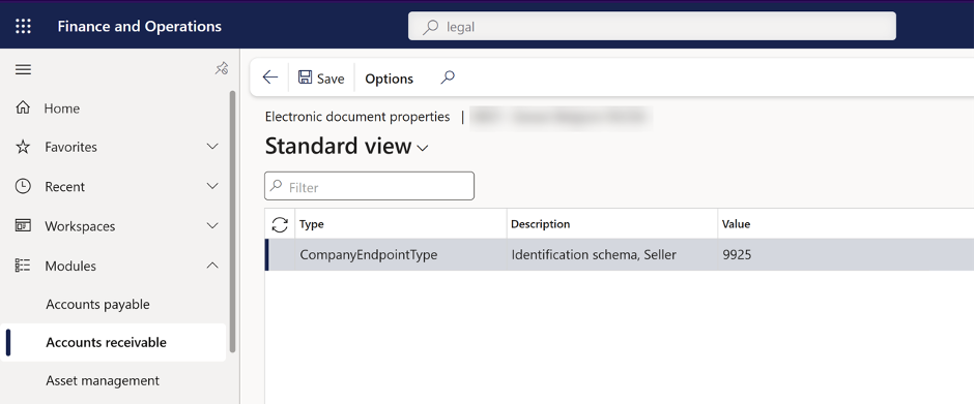
- On the Action Pane, select Electronic document properties.
- In the Value column, enter the required seller schema code.
Note: For the seller’s identification, schema 9925 (Belgium VAT number) is used by default if you don’t define another schema. Schema codes that you define through electronic document property types take priority over the default 9925 schema code. The value of the EndpointID is always retrieved from the seller’s VAT-exempt-number export field, regardless of the schema value redefined in the seller’s CompanyEndpointType parameter.
Enter the Buyer Schema Codes
If the default buyer identification schema does not meet your requirements, a custom schema code can be defined at the customer level. This configuration determines which schema is applied when generating the buyer’s identification in the electronic invoice.
To enter buyer schema codes:
- Go to Accounts receivable > Customers > All customers.
- Select the customer.
- On the Action Pane, on the customer tab, in the properties group, select Electronic document properties.
- Enter the required buyer schema code in the Value column.
Note: For the buyer’s identification, schema 9925 (Belgium VAT number) is used by default if you don’t define another schema. Schema codes that you define through electronic document property types take priority over the other built-in 0088, 0208, or 9925 schema codes. The value of the EndpointID is retrieved from the buyer’s active registration number, which you must create with the type that exactly matches the value of the buyer’s CustomerEndpointType parameter.
Configure Units of Measure
Units of measure must be mapped to external codes so that the correct values are written to the electronic invoice output. This ensures that quantities are interpreted correctly when the invoice is generated and exchanged.
To configure units of measure:
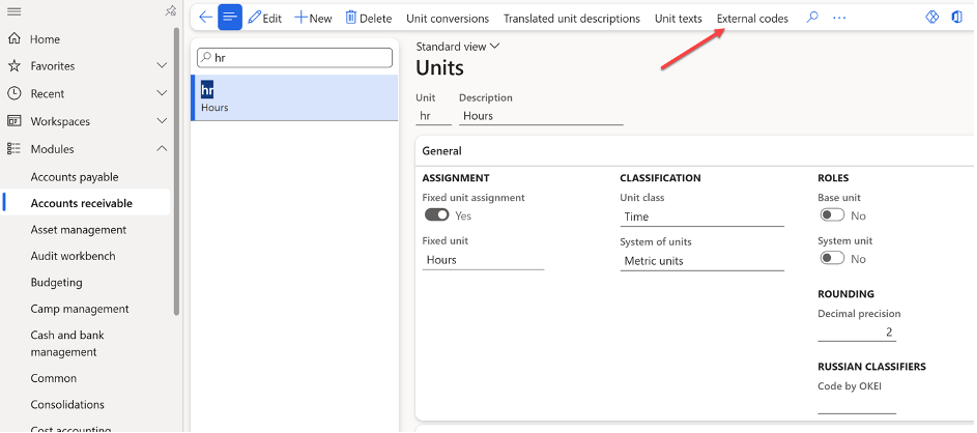
- Go to Organization administration > Setup > Units > Units.
- Select a unit ID and open External codes.
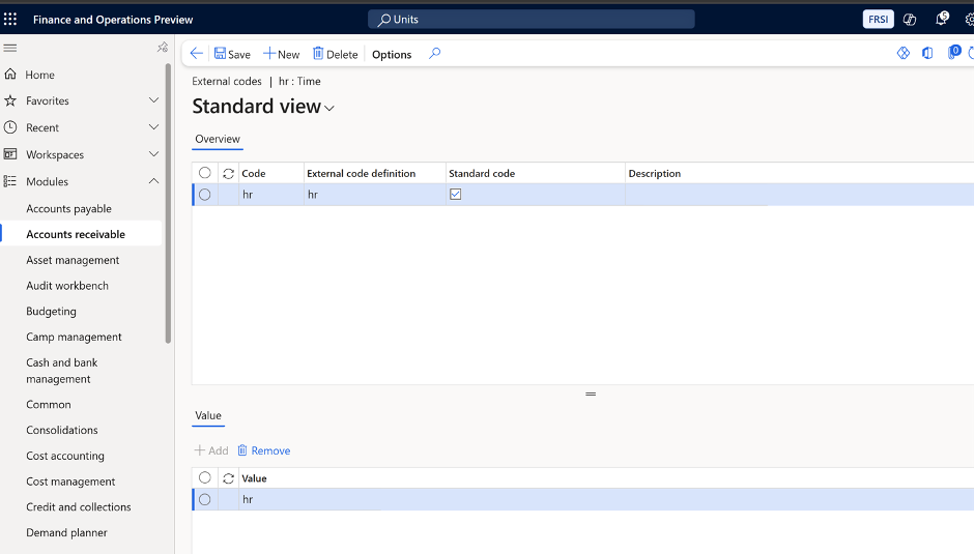
- On the external codes page, in the overview section, in the code column, enter a code that matches the selected unit ID.
- Enable Standard code.
- In the Value section, in the Value field, enter the external code according to the required codification.
Note: If no specific unit is defined, the default value EA is used.
Configure Sales Tax Codes
To configure sales tax external codes:
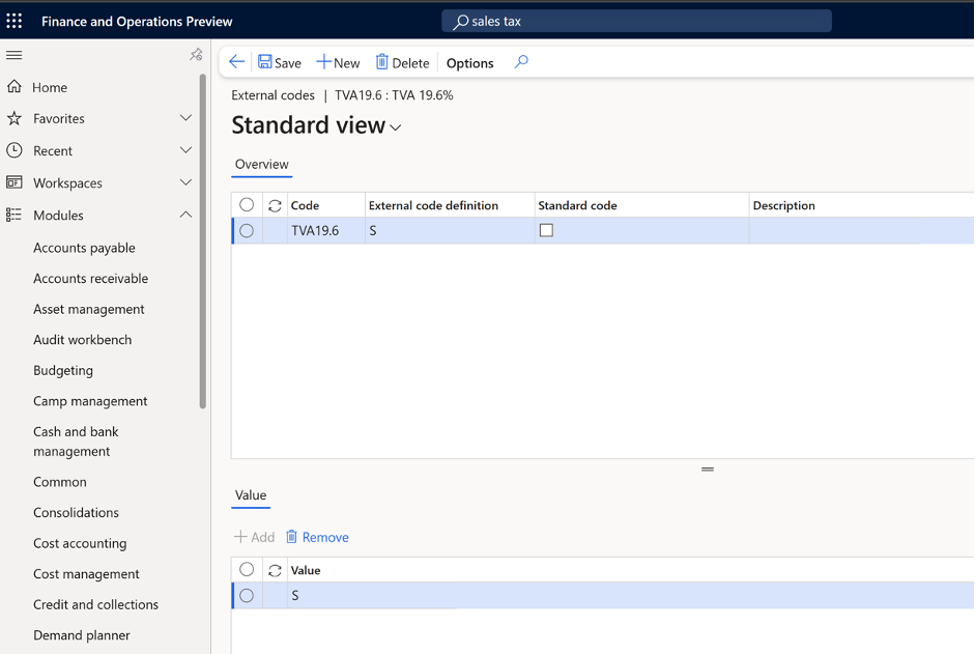
- Go to Tax > Indirect taxes > Sales tax > Sales tax codes.-Select a sales tax code then on the Action Pane, on the Sales tax code tab, in the Sales tax code group, select External codes-
- In the Overview section, create a line for the selected unit. In the External code field, enter the sales tax code you selected in step 2.-
- In the Value section, in the Value field, enter an external code to use for the selected sales tax code, according to Duty or tax or fee category code (Subset of UNCL5305).
Set up Electronic Reporting Parameters in Accounts Receivable
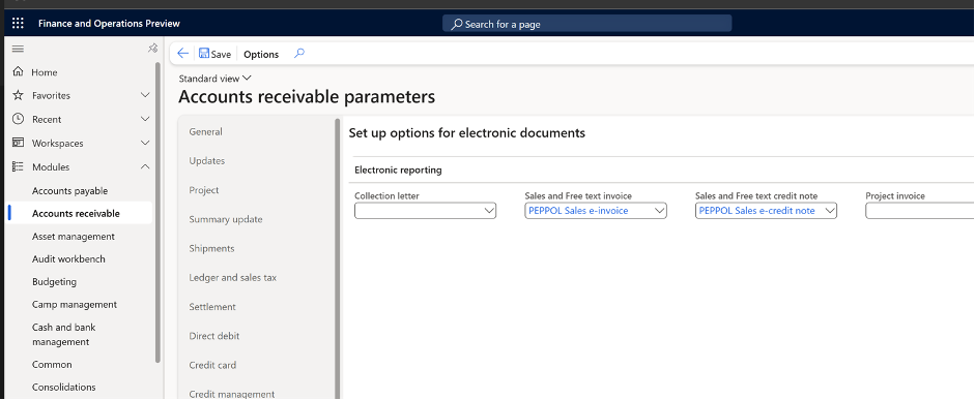
Navigate to Accounts receivable parameters > Electronic documents.
Select the required sales electronic invoice formats to enable Electronic Reporting for Accounts Receivable.
Enable E-invoice for Customers
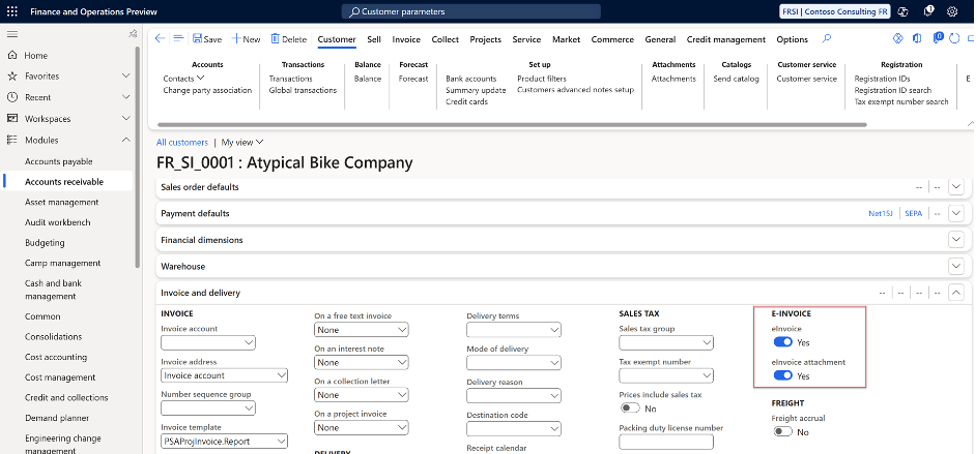
Ensure that electronic invoicing is enabled for customers who will receive PEPPOL sales invoices. This setting controls whether electronic invoice export is triggered when invoices are posted.
Set up Document Type for Your SharePoint Export Folder
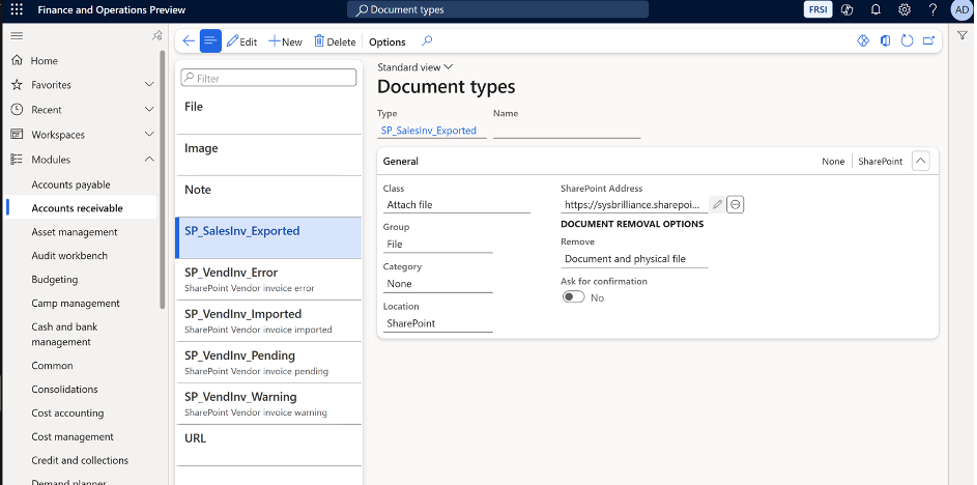
Create and configure a document type that points to the SharePoint folder used for exporting electronic invoices.
Set up Electronic Reporting Destination to SharePoint
Configure an Electronic Reporting destination that connects the selected PEPPOL sales invoice format to the SharePoint export location.
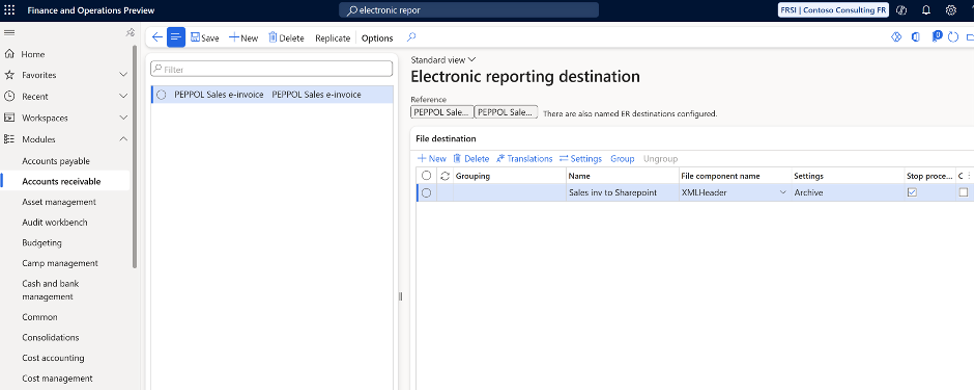
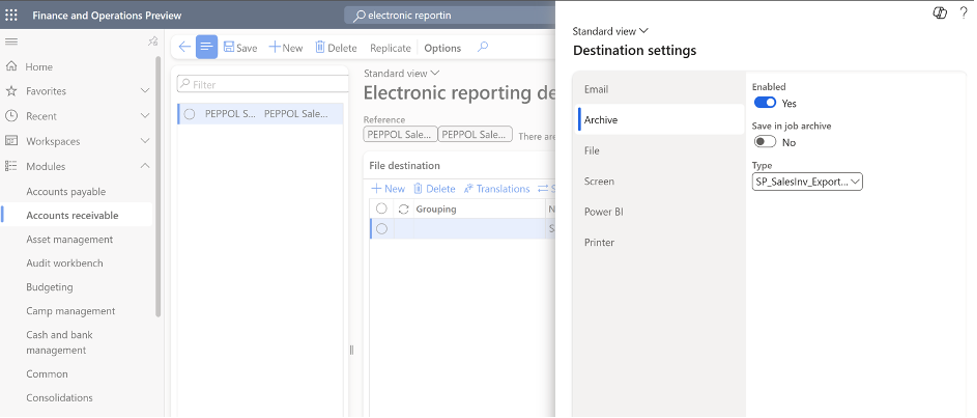
Post a customer invoice and ensure that Print invoice is enabled. Posting the invoice triggers the Electronic Reporting destination.
Once posted, the electronic invoice is exported to the configured SharePoint folder.
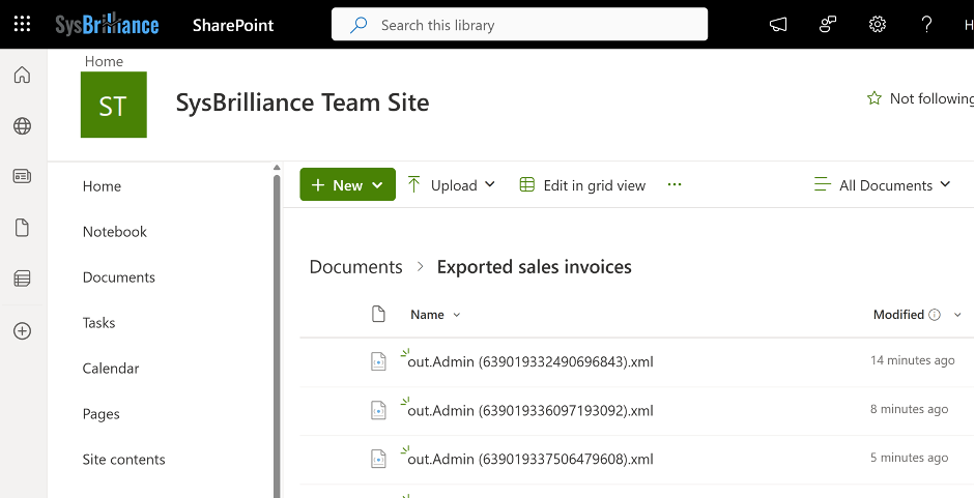
In addition to SharePoint, sales electronic invoices can also be exported to an SFTP server when required by external platforms or Authorized Service Providers (ASPs).
Using the SysBrilliance SFTP add-on, Dynamics 365 Finance can securely send PEPPOL UBL electronic invoice files via SFTP, supporting electronic invoicing exchanges for Belgium, France, and other European frameworks without custom development.
Extending Your Electronic Invoicing Setup
Once sales electronic invoice export is in place, many organisations move on to vendor electronic invoice import.
The configuration pattern is largely the same as the one used here (link france blog). If you’d like to continue with that setup, the France vendor electronic invoice export blog explains the shared Electronic Reporting and SharePoint steps in more detail, with vendor-specific examples.
Final Outcome
With the required Electronic Reporting configurations and master data in place, sales electronic invoices for Belgium and France can be generated and exported reliably from Dynamics 365 Finance and Operations. The exported files follow the PEPPOL UBL structure and are ready for submission through the appropriate channels.
For organisations implementing or refining sales electronic invoicing in Dynamics 365 Finance and Operations, Sysbrilliance supports Electronic Reporting configuration, schema setup, and validation to ensure compliant and reliable invoice exports.
If you need assistance with setup, troubleshooting, or validating your e-invoicing configuration, the Sysbrilliance team can help.
Book a call via our Calendly to discuss your requirements and next steps.