
In the last article, we broke down how to manage project purchase orders, accruals, and vendor invoicing in D365 F&O.
Managing project-based manufacturing requires clear visibility into what’s being produced, how much it costs, and when those costs should hit the project budget. In many industries, such as construction, engineering, equipment fabrication, or custom manufacturing, production activity is tied directly to project deliverables.Dynamics 365 F&O supports this through Production Orders, allowing organizations to connect manufacturing activity with project timelines, resources, and financials. When used correctly, Production Orders become a reliable way to improve cost tracking, strengthen project reporting, and streamline customer billing.
Below is a practical look at how Production Orders work in Dynamics 365 F&O and how they support accurate project accounting from start to finish.
Creating a Production Order for a Project Item
A Production Order begins with the item that needs to be manufactured for the project.
Navigation: Production control > Production orders > All production orders
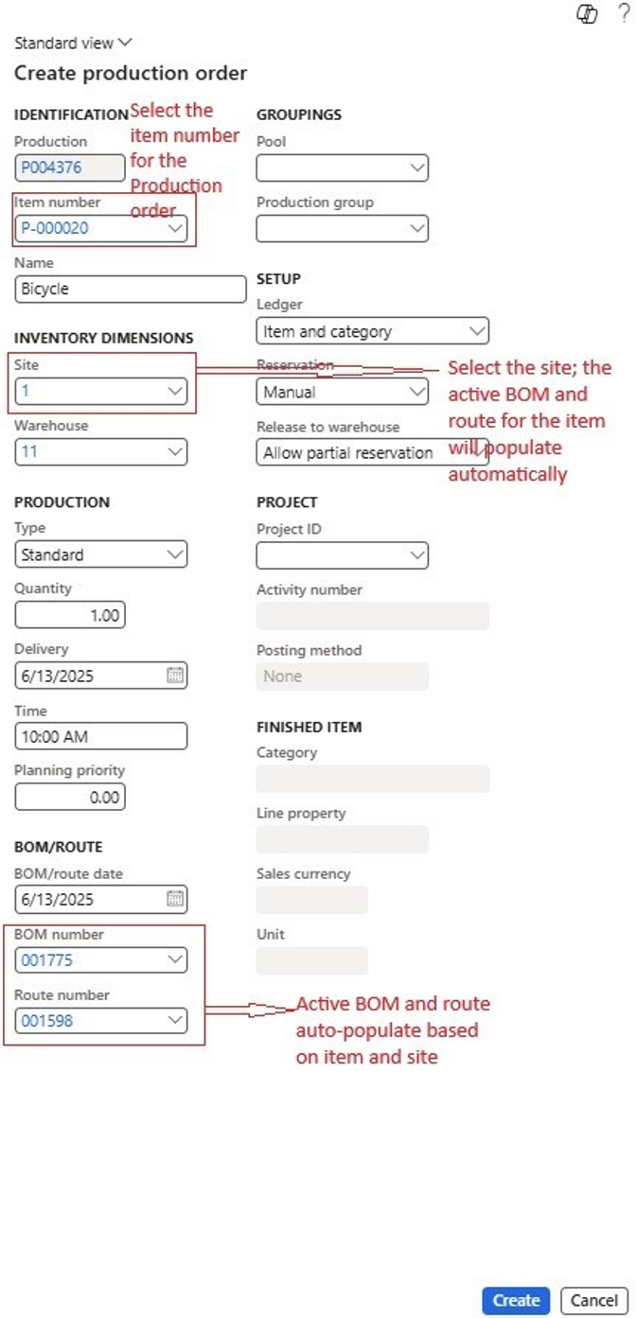
- Select New to create a new Production Order.
- Choose the item number that must be produced for the project.
- Enter the site, warehouse, and quantity to be produced.
- Select Create to generate the order.
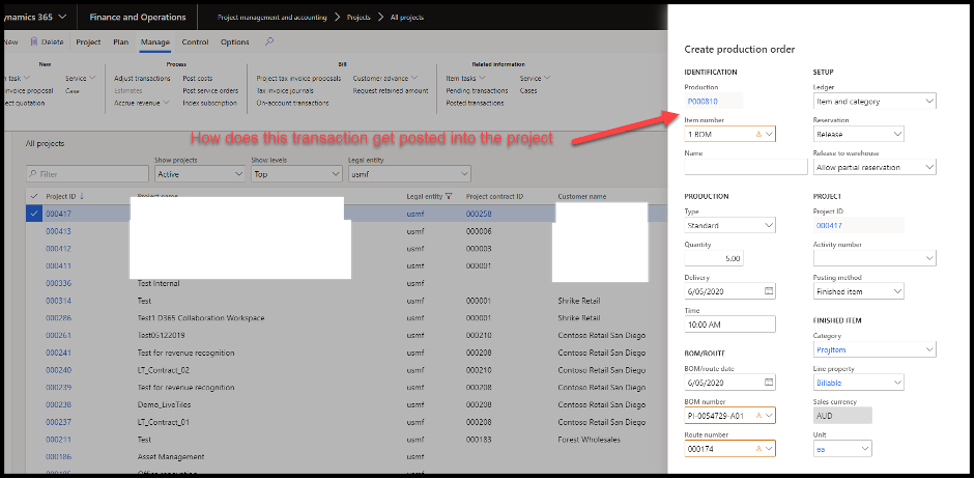
This Production Order becomes the foundation for linking manufacturing activities to the project.
Linking the Production Order to a Project
Once the order is created, it needs to be associated with the correct project.
This step ensures:
- All manufacturing costs flow into the project budget
- Labor, material, and overhead costs reflect accurately in financial reporting
- Project managers maintain real-time visibility into what is being produced
Linking can occur during creation or immediately after, depending on internal workflow.
Planning and Scheduling the Production Order
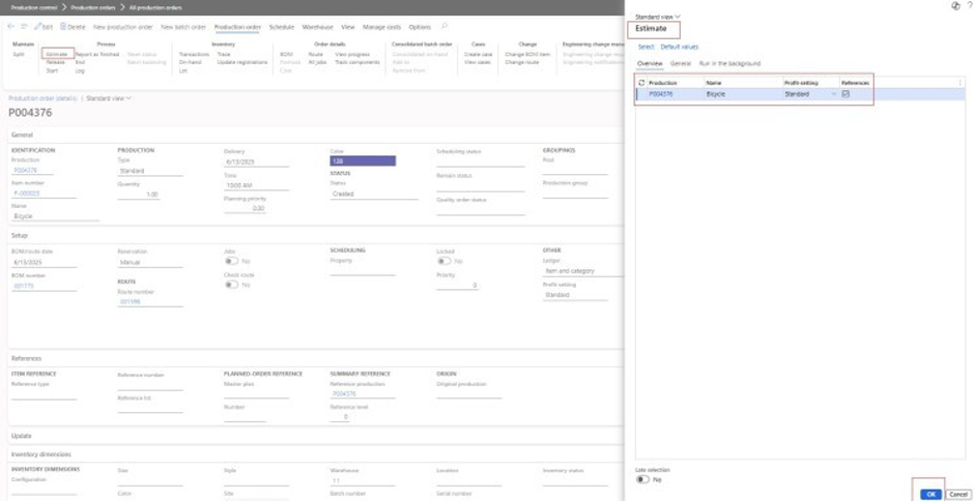
Dynamics 365 F&O automatically uses the approved Bill of Materials (BOM) and Route associated with the selected item.
Plan
- The system reviews the BOM and Route
- Defines the required components
- Identifies the operational steps needed for production
Schedule
Scheduling checks:
- Component availability
- Resource capacity (machines, labor, tools)
- Estimated production duration
- Potential conflicts or delays
Production can be scheduled immediately or later depending on project needs.
Releasing and Managing Production
Once planning and scheduling are complete, the Production Order can be released.
Release
Releasing the order allocates raw materials and signals the start of the manufacturing process.
Work in Progress (WIP)
As production runs, the system tracks:
- Material consumption
- Labor hours
- Resource usage
- Any adjustments or rework
Report as Finished
When the item is completed:
- Inventory updates automatically
- Final production costs flow into the associated project
- The order moves to a finished or ended status
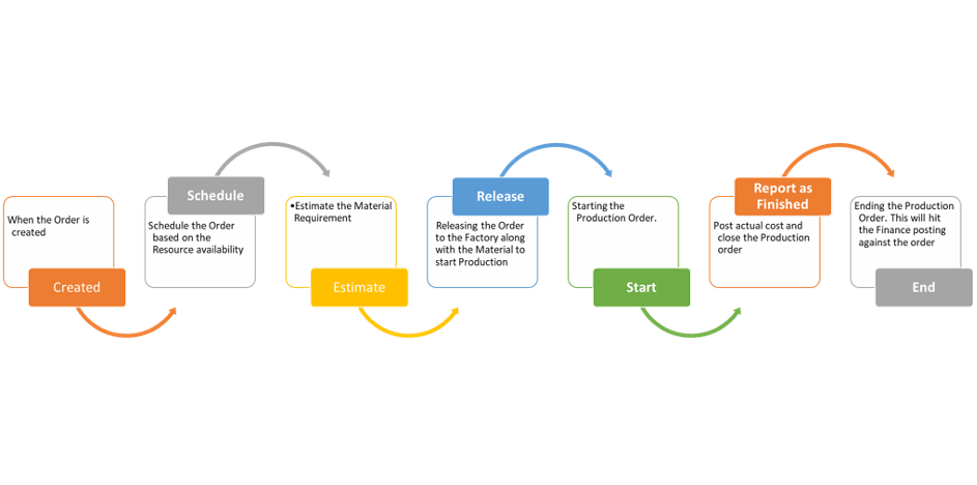
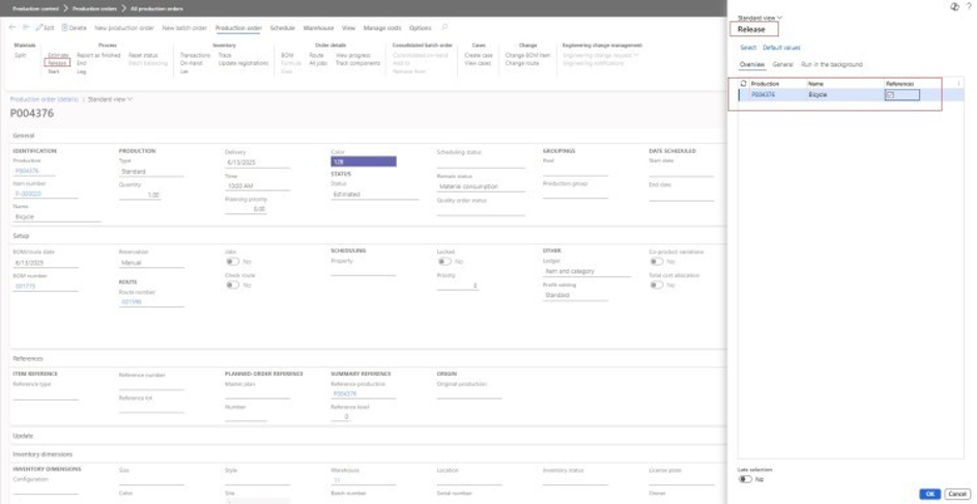
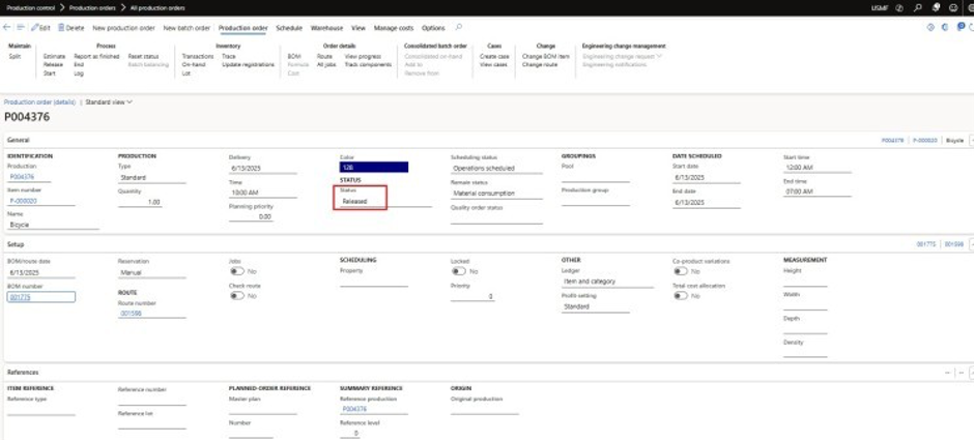
This process keeps Production Orders tightly connected to cost tracking, ensuring every manufacturing cost is visible to project managers.
Key Features of Project-Based Production Orders
1. Integration with Projects
Production orders link directly to projects, allowing all related manufacturing activities, such as material usage, labor consumption, machine time, and overheads, to be captured against the correct project. This connection ensures that every cost flows into the appropriate financial structure and supports accurate project reporting.
2. Accurate Cost Tracking
As production progresses, every component of the process contributes to project cost. Raw materials, labor hours, routing operations, and applied overhead rates are recorded in real time. This continuous visibility strengthens cost tracking, reduces surprises, and gives project managers better financial control.
3. Material Planning (MRP)
With Material Requirements Planning, Dynamics 365 F&O checks component availability, triggers procurement when needed, and prevents material shortages that could delay production. This ensures that manufacturing stays aligned with project timelines and that essential components are always available when work begins.
4. Resource Allocation
Machine capacity and labor resources are scheduled based on project demands, helping teams avoid bottlenecks and production slowdowns. By aligning resources with project needs, organizations maintain smoother workflows and reduce the risk of missed deadlines.
5. Real-Time Monitoring
Managers can monitor the status of production orders as they move through each stage. Real-time updates provide insight into progress, delays, variances, and capacity constraints, allowing teams to respond quickly and keep the project on track.
6. Finished Item vs. Consumed Item Posting
Dynamics 365 F&O offers two posting methods to support different manufacturing approaches. The Finished Item method posts costs only when the production cycle is fully completed, creating a single consolidated cost transaction, ideal for items where completion triggers revenue or customer delivery. The Consumed Item method posts costs gradually as materials and labor are used, providing earlier cost visibility and a more detailed breakdown. This makes it suitable for long-running or complex production where early financial insight is important.
Project Invoicing in Dynamics 365 F&O
Project invoicing works the same way regardless of whether costs originate from transactions, purchase orders, or Production Orders.
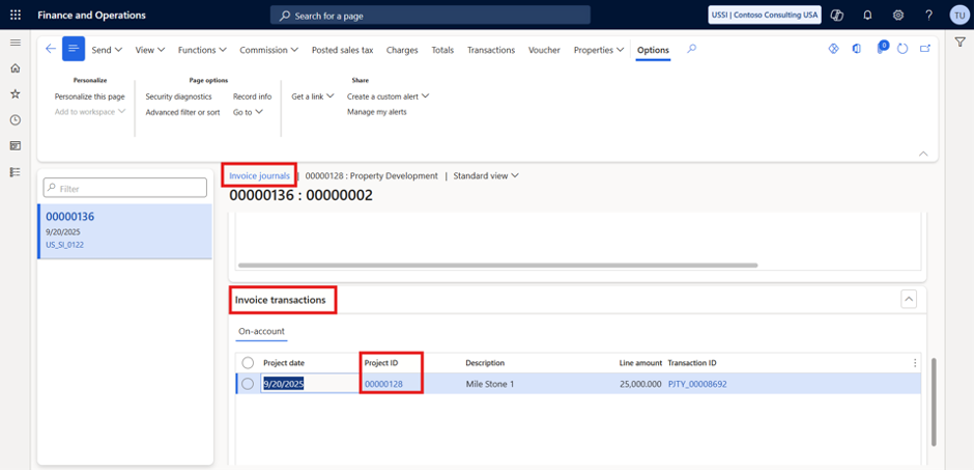
Dynamics 365 supports invoicing for:
- Time and Material projects
- Fixed-Price projects
Only these two external project types can be billed.
Invoicing Methods for Project Production Orders
1. On-Account Invoicing
Common for Fixed-Price projects, where billing happens based on:
- Milestones
- Percent complete
- Delivery events
2. Transaction-Based Invoicing
Used for Time and Material projects, where the customer is billed based on:
- Hours
- Items
- Expenses
- Fees
3. Periodic Invoicing
Periodic functions allow invoicing across multiple projects at once, based on posted transactions.
4. Credit Notes
A credit note can be issued if:
- An earlier invoice needs correction
- Customer prepayments require adjustment
- A project overcharge must be reversed
The system uses the same workflow as normal invoicing, but marks the document as a Credit Note.
Invoice Proposals
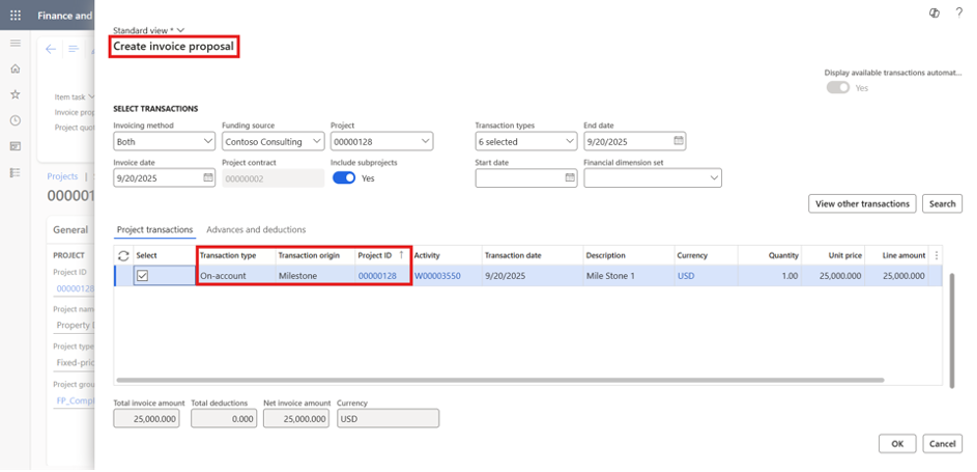
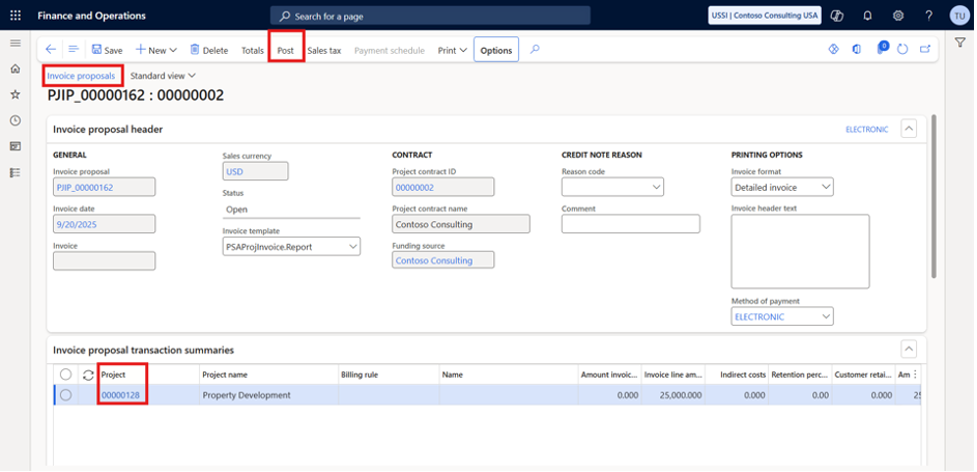
Before a customer invoice is created for a project, Dynamics 365 F&O allows the project team to build a preliminary invoice called an invoice proposal. This proposal acts as a draft where the user selects which project transactions should be included in the customer invoice. It provides a chance to review and adjust the details before posting the final project invoice and sending it to the customer or funding source.
Creating Invoice Proposals
Invoice proposals can be created manually by selecting transactions from the list of available project transactions. Billing rules can also be configured to generate proposals automatically when certain milestones are reached, for example, when a project is 25%, 50%, 75%, or 100% complete.
A proposal can include many types of transactions, such as hours, expenses, previously withheld amounts, credit notes, and even advance payments made by the customer before the project starts. Fee transactions can also be added, and the user can update sales prices on hour, expense, item, or fee lines. When the proposal is posted, the updated values are reflected in project reports and transaction history.
If a project requires multiple invoices, separate proposals must be created. For instance, one proposal may include only hour transactions, while another may contain item or fee transactions. Projects with multiple funding sources can also generate multiple proposals. On the Funding rule allocations page, users can define how percentages of the transaction amounts should be distributed across funding sources and where to record rounding differences.
Creating Customer Invoices from Invoice Proposals
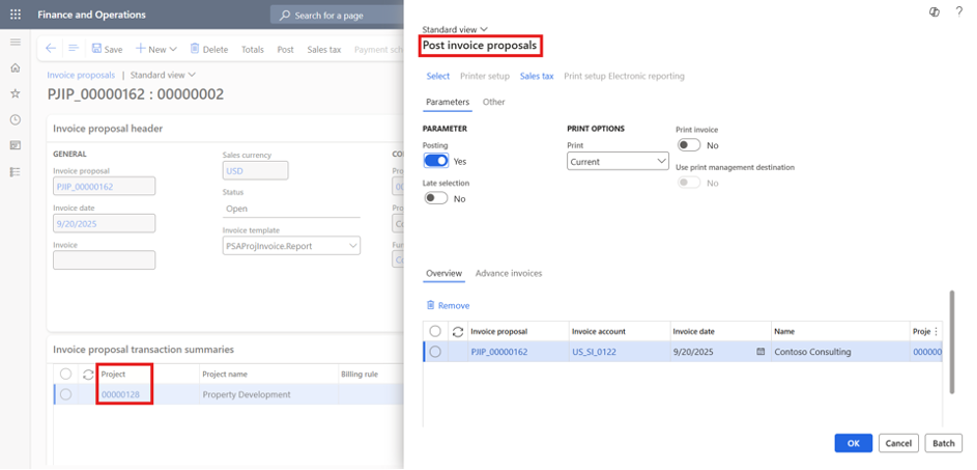
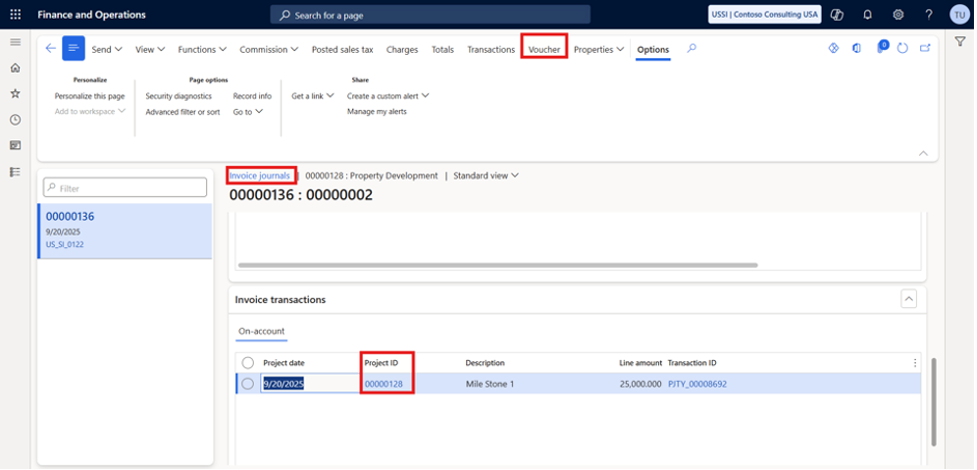
Once an invoice proposal is posted, Dynamics 365 F&O automatically creates a customer invoice that matches the selected transactions. Before posting, users may add or remove transactions, such as removing expense lines that are not chargeable to the customer. If the organization requires approval before posting, invoice proposals can be routed through the Review project invoice proposals workflow.
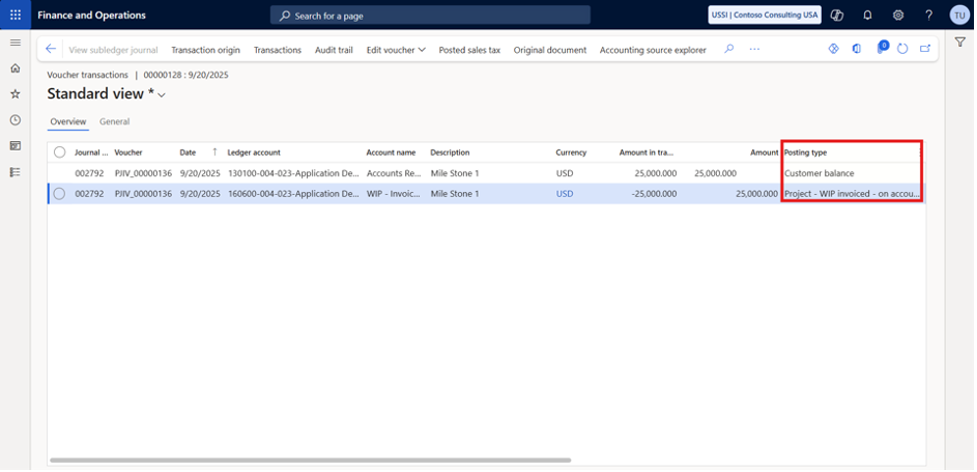
On-Account Invoicing
On-account invoicing is used when the billing amount is tied to contractual conditions rather than specific posted transactions. The amount entered on an on-account line reflects timing, percentage of completion, milestones, or other criteria defined in the project contract.
An on-account transaction must be created for Time and Material or Fixed-Price projects before it can be included in an invoice proposal. The user selects the on-account line in the proposal, reviews the information, and then generates the customer invoice.
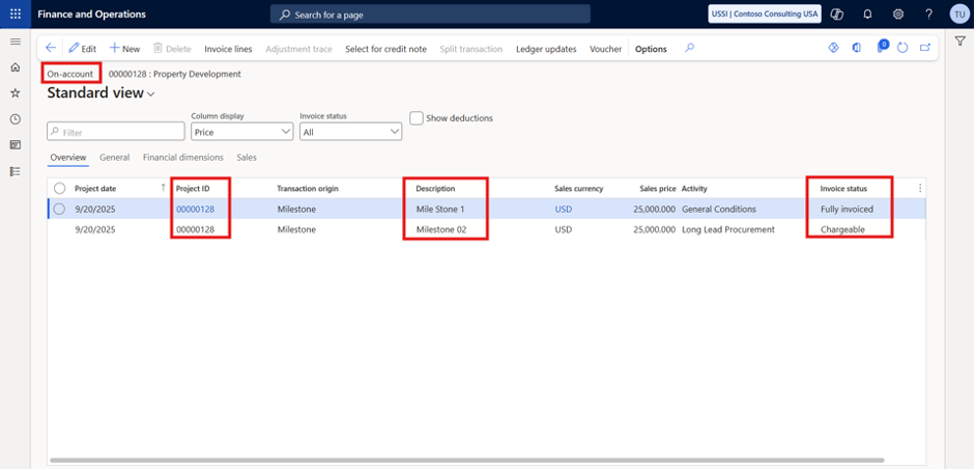
Fixed-Price Projects
For Fixed-Price projects, on-account lines often represent agreed-upon milestones or units of delivery. Each line corresponds to a payment the customer must make, and no deductions are required.
Time and Material Projects
For Time and Material projects, an on-account invoice may be used for prepayments. Users can enter a single on-account line and optionally add deduction lines (entered as negative amounts) to offset prepayments already made by the customer.
Invoice Control
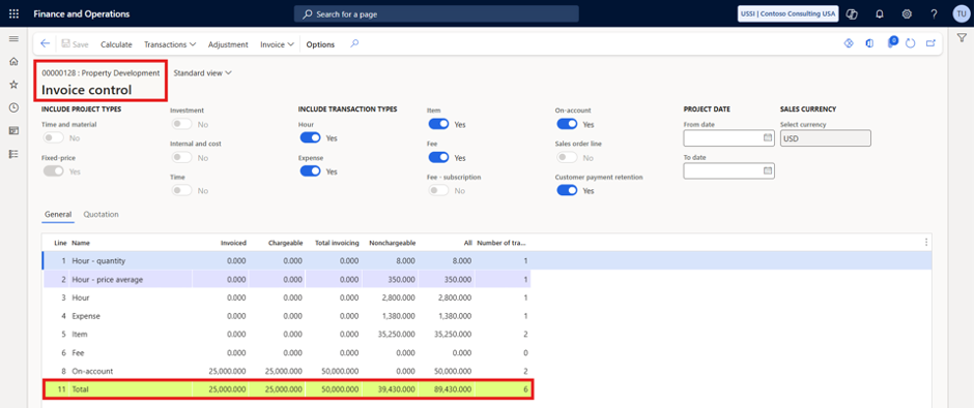
Invoice control provides visibility into both invoiced and non-invoiced transactions throughout the project lifecycle. It helps teams track what has been billed and what remains open, compare actuals against quotations, and adjust transactions after posting when required.
Invoicing Fixed-Price Projects
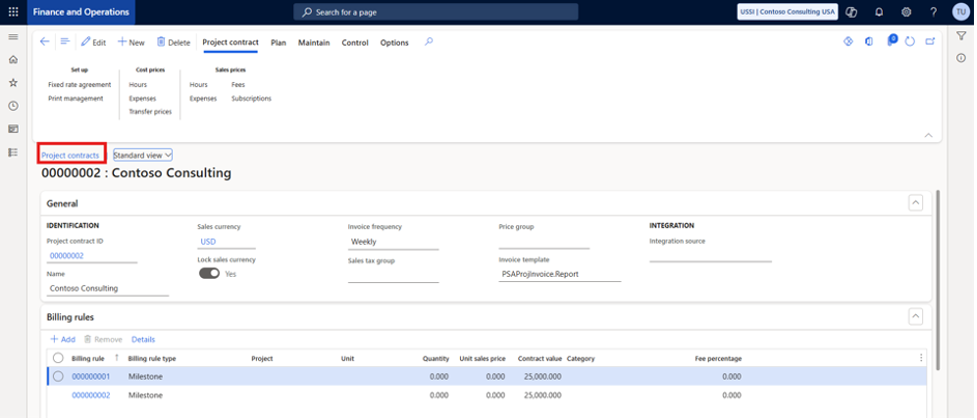
Fixed-Price projects rely on a billing schedule, which is defined through one or more project milestones. Each milestone can have its own date, currency, price, and related activity. For example, a billing schedule might include:
- 20% when the contract is signed
- 30% on the first delivery
- 15% on the second delivery
- 35% on final delivery
When these milestones are ready for billing, the on-account process is used to generate and post customer invoices.
Vendor Invoicing for Production-Related Purchases
When goods are purchased for production:
- The line property determines if costs are billable
- Vendor invoices flow into the project
- Chargeable lines generate customer billing
- Non-chargeable lines are absorbed as internal cost
Credit note workflows allow for corrections to previously billed amounts.
Advanced Contracts for Billing Based on Progress
For projects billed by percentage of work completed:
- Project categories (e.g., Consulting, Design, Construction) define the billing structure
- Billing rules calculate invoice amounts
- Completion percentage is calculated using actuals vs. budget
This supports accurate, milestone-based invoicing for large, multi-phase projects.
Conclusion
Project-based manufacturing depends on accurate visibility into what’s being produced, how much it costs, and when those costs should be billed. Dynamics 365 F&O brings all these moving parts together through Production Orders, giving project managers and finance teams a unified way to manage production activity and improve cost tracking.
From planning and scheduling to cost posting and invoicing, Production Orders provide a structured, reliable process that supports both operational efficiency and financial accuracy.
If your organization depends on project-driven manufacturing, SysBrilliance can help you streamline production setup, improve cost tracking, and simplify invoicing within Dynamics 365 F&O.
Reach out today for expert guidance on optimizing your production and project accounting workflows.
The next part explores how revenue recognition works in D365 Project Operations and which models different industries rely on.