
Previously, we explained how project categories support accurate budgeting, costing, and reporting in D365 F&O.
Projects rarely fail because of the effort. They fail because of disconnection. Timelines, budgets, and resource plans live in different systems, and by the time something looks wrong, it usually is. Microsoft Dynamics 365 F&O bridges that gap by turning fragmented project data into one connected view. It acts as both a financial engine and a project management software hub, letting teams plan, allocate, and execute with precision.
This guide walks through how to set up and manage projects in D365 F&O, using its built-in project management software tools to align people, processes, and performance.
Creating a Working Calendar
Every organization runs on its own schedule, and Dynamics 365 F&O allows project teams to define that structure through working calendars.
To create one, navigate to: Organization administration > Setup > Calendar
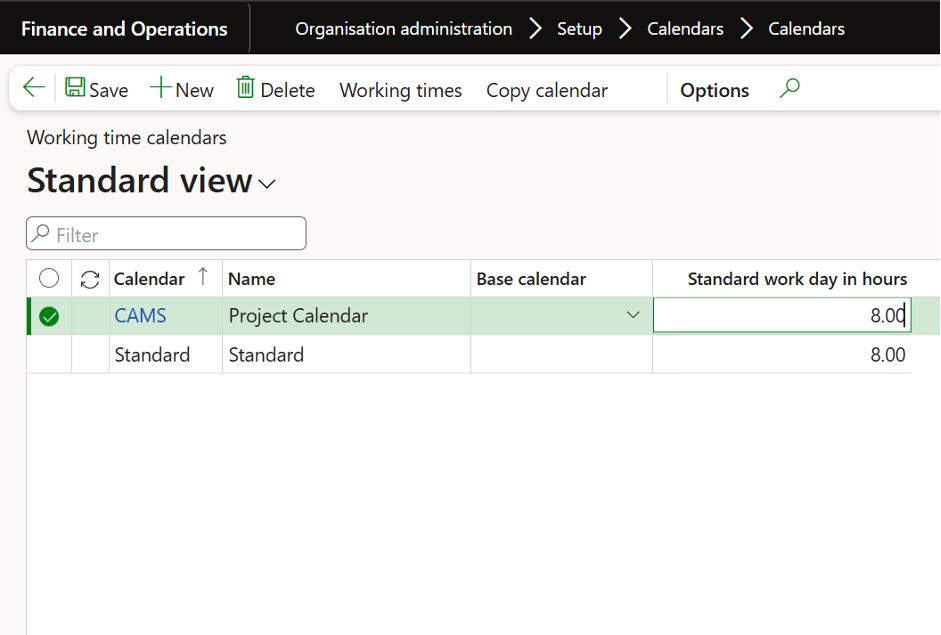
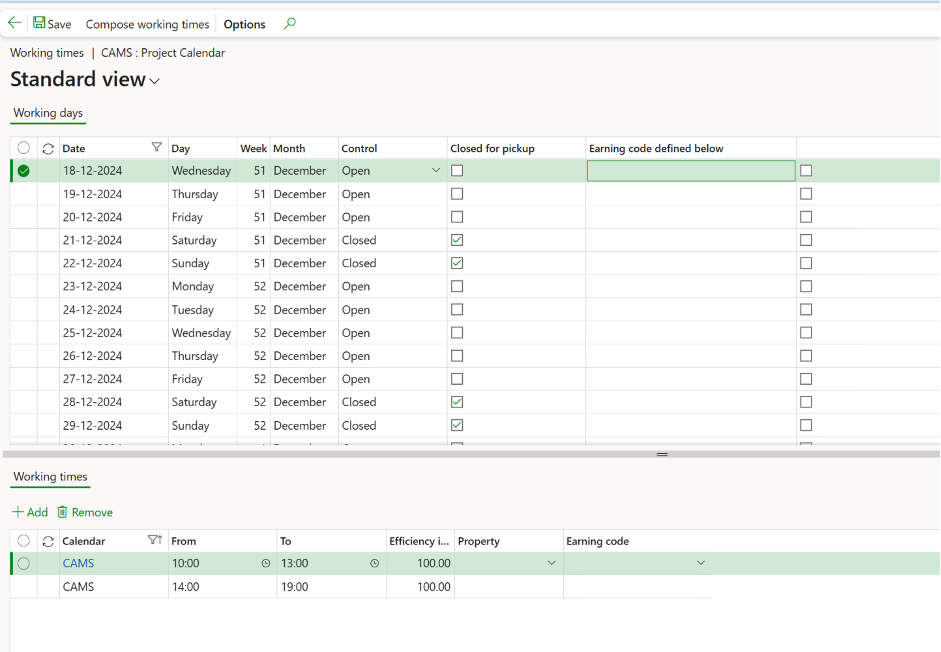
Once the calendar is created, select Working Time > Compose Time to configure your working template.
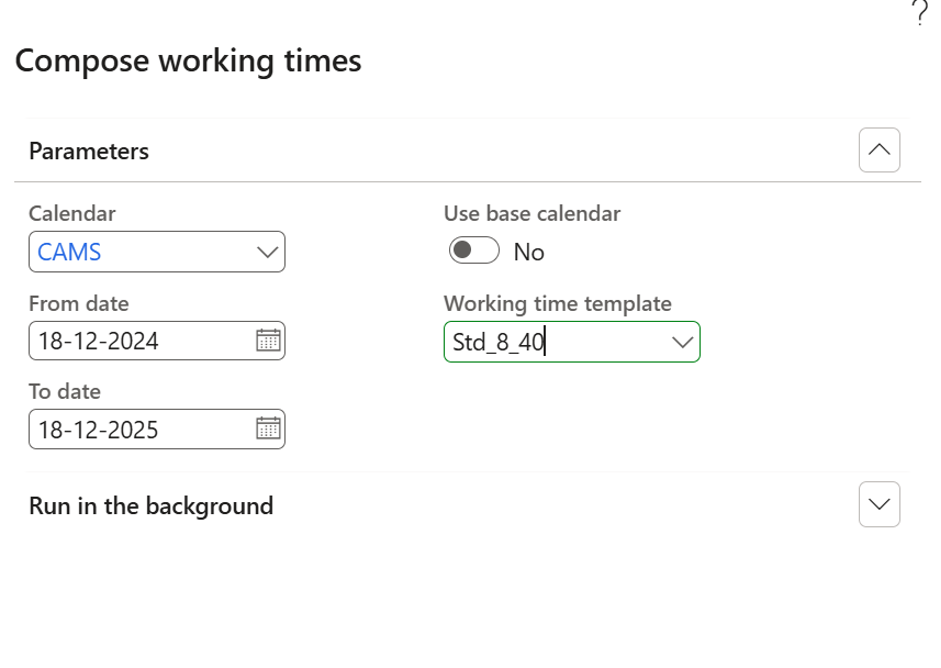
Defining Working Time Templates
A working time template determines when resources are available for project work. Teams can specify:
- Start and end days for each workweek
- Daily working hours
- Break durations
For example, a company might define an 8-hour workday (10 a.m. to 7 p.m.) from Monday to Friday, with a one-hour lunch break. The Copy Day function makes it simple to duplicate schedules across multiple days, ensuring consistency.
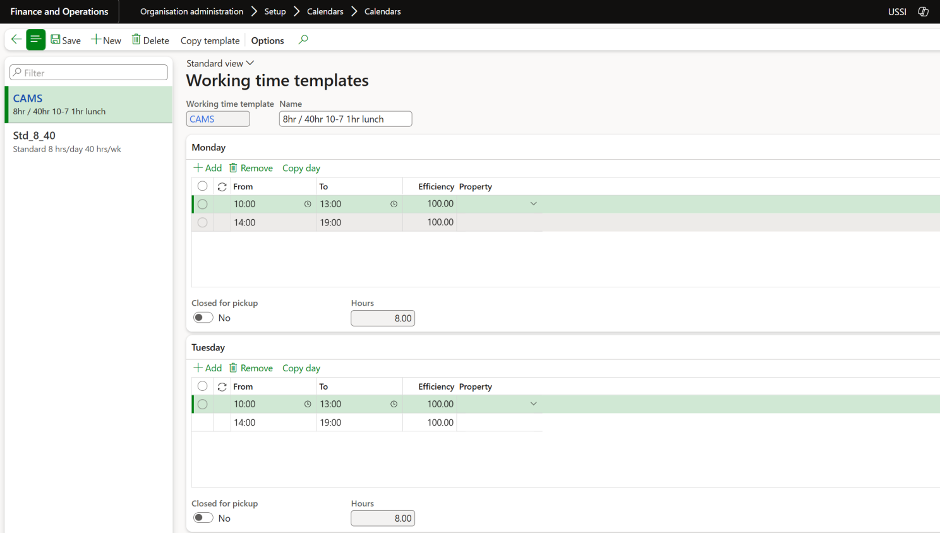
After setting up the template, select Compose Working Time to generate the working days for your project calendar automatically. This structure becomes the foundation for resource scheduling and project planning within Microsoft Dynamics 365 F&O.
Project Stages
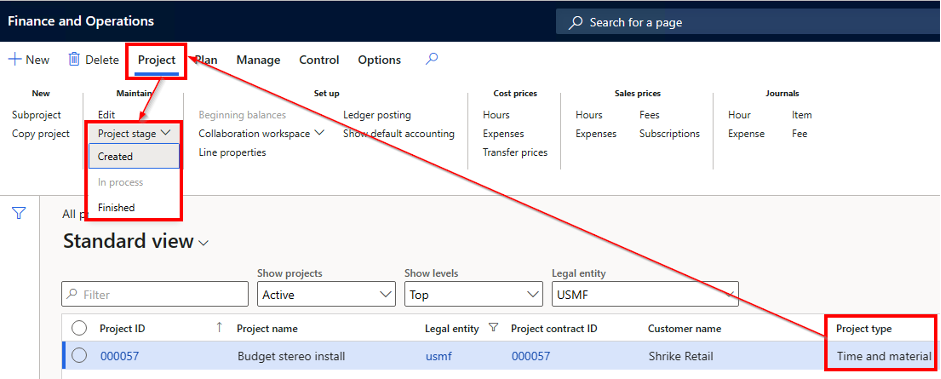
Project stages define how a project moves through its lifecycle—from initiation to closure. Within Microsoft Dynamics 365 F&O, project stages are configured in the Project management and accounting parameters.
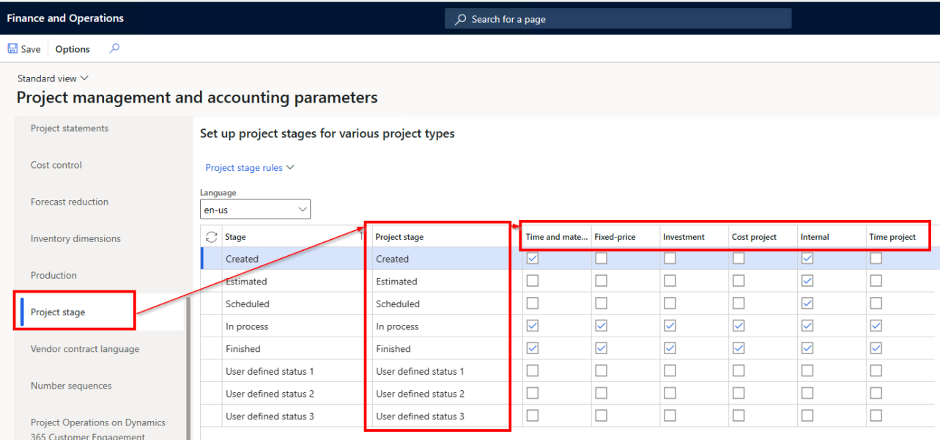
D365 F&O includes:
- Five predefined stages
- Three user-defined stages for customization
Each stage can be renamed to reflect internal terminology or progress tracking needs. Organizations can also define specific project stage rules to control what actions are permitted at each point in the process.
Go to: Project management and accounting > Setup > Project management and accounting parameters
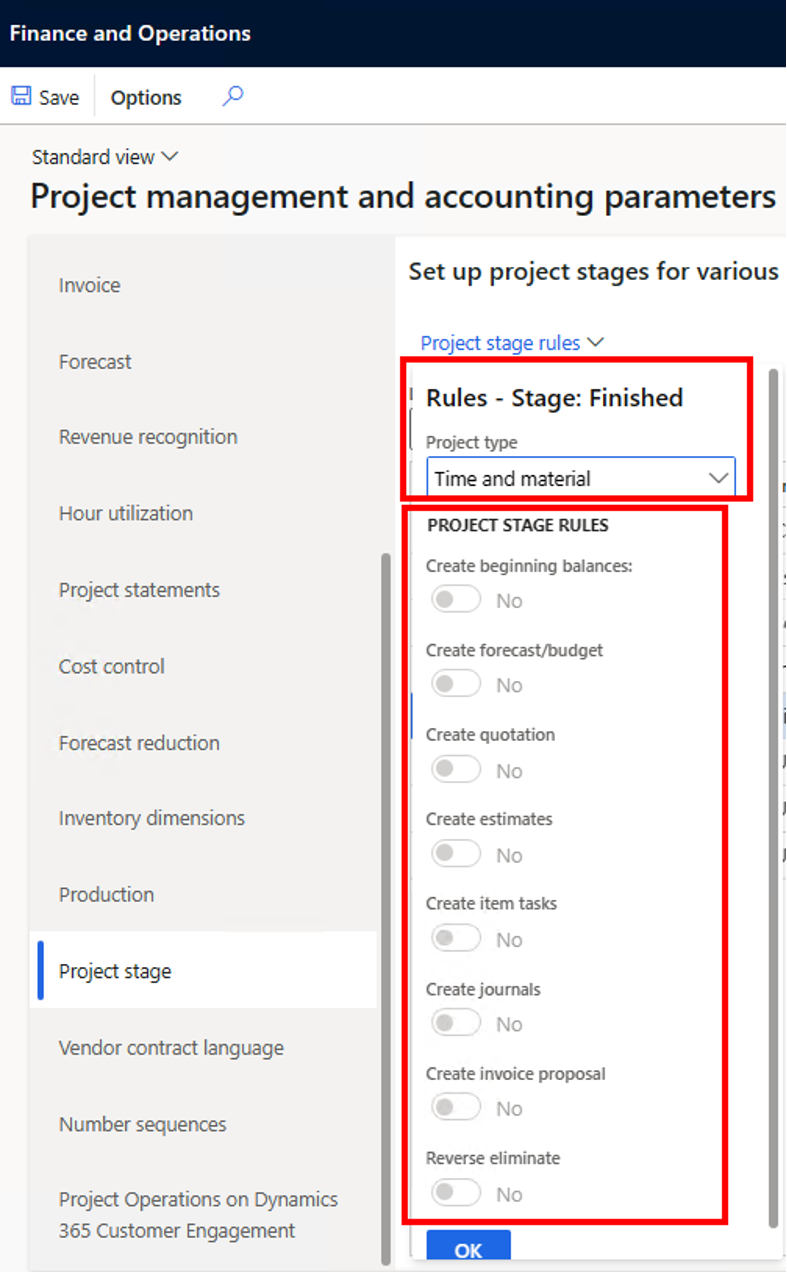
Project stage rules define which actions are allowed or restricted at each stage. These rules link directly to project types and ensure that every project follows a consistent workflow
Project Resourcing
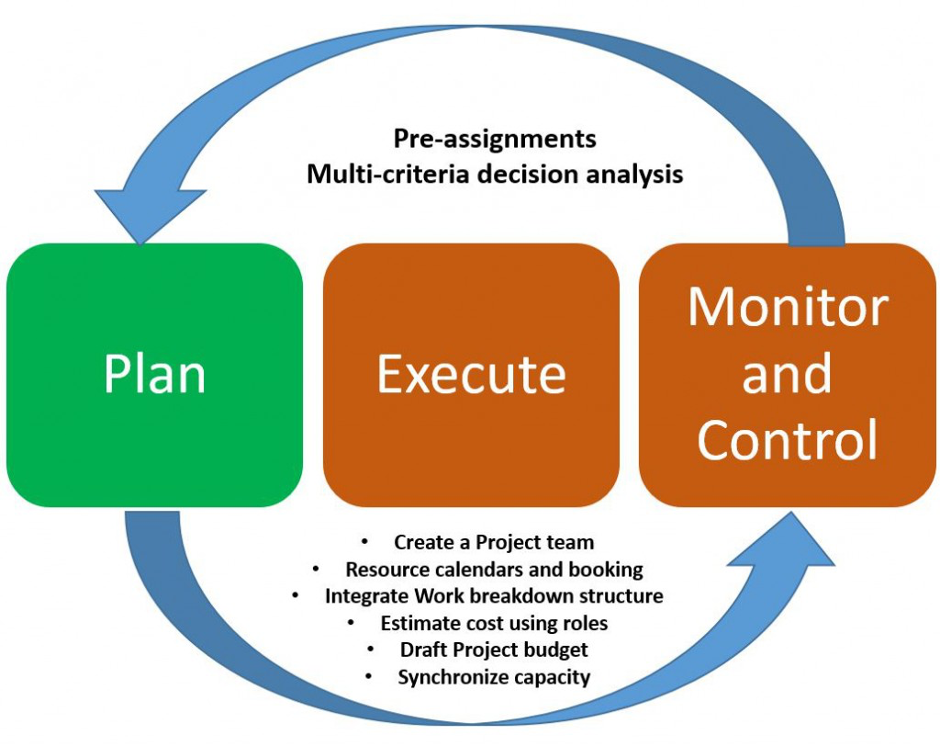
During the planning phase, project and resource managers often face challenges in allocating the right people to the right tasks. In Microsoft Dynamics 365 F&O, the resourcing capabilities simplify this process by allowing roles to be defined based on required skills and competencies.
Roles help estimate costs, set initial budgets, and plan resource requirements for each task within the project. They also provide a clear foundation for creating the Work Breakdown Structure (WBS) by outlining which resources are needed and when.
By defining roles early, managers can forecast demand across the entire project lifecycle and ensure that the right resources are available when needed.
Setting Up Project Resources
Each resource, whether an employee, contractor, or piece of equipment, should be linked to a working calendar. This allows managers to schedule based on actual availability and manage workloads efficiently. Resource levelling can also be performed to balance demand and prevent overbooking.
Managing Resource Competencies
Competencies form the backbone of effective resource management. In D365 F&O, each resource can be tagged with skills, education, certifications, and experience. Maintaining up-to-date competency profiles ensures that project managers can match the most qualified individuals to specific tasks.
When these capabilities are used together, Microsoft Dynamics 365 F&O functions as a complete project management software solution, improving both productivity and accuracy in staffing decisions.
Project Quotations
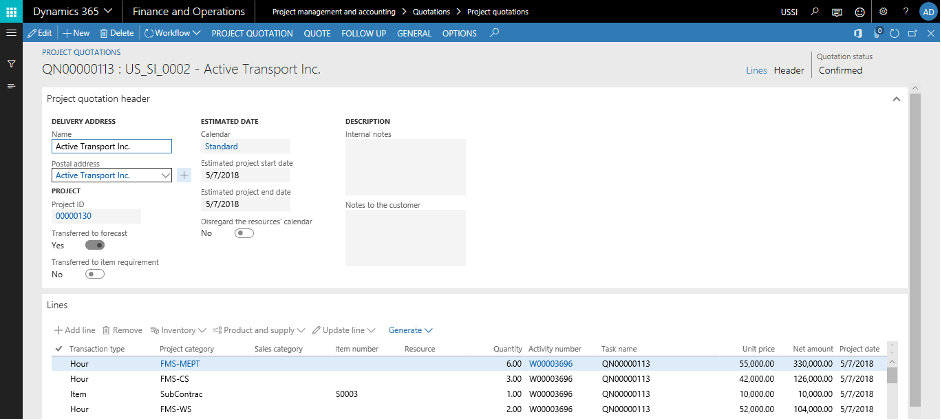
Before work begins, most organizations need to present clients with a clear proposal. Project quotations in Microsoft Dynamics 365 F&O help teams create accurate, transparent offers that include:
- Quoted items and services
- Contact details and pricing agreements
- Applicable taxes, discounts, and surcharges
Each quotation can also include a task hierarchy, allowing project managers to estimate time, costs, and required skills for each activity.
These quotations aren’t binding at first, but once approved, they can be converted into formal projects and linked directly to project contracts. This ensures that all approved budgets, pricing, and scope details carry forward into execution without duplication or data loss.
Project Creation
Once a contract is confirmed, new projects can be created directly within the Project management workspace.
Example setup:
- Project type: Fixed Price
- Project name: Property Development
- Project group: FP_CompP
- Project contract ID: 00000002
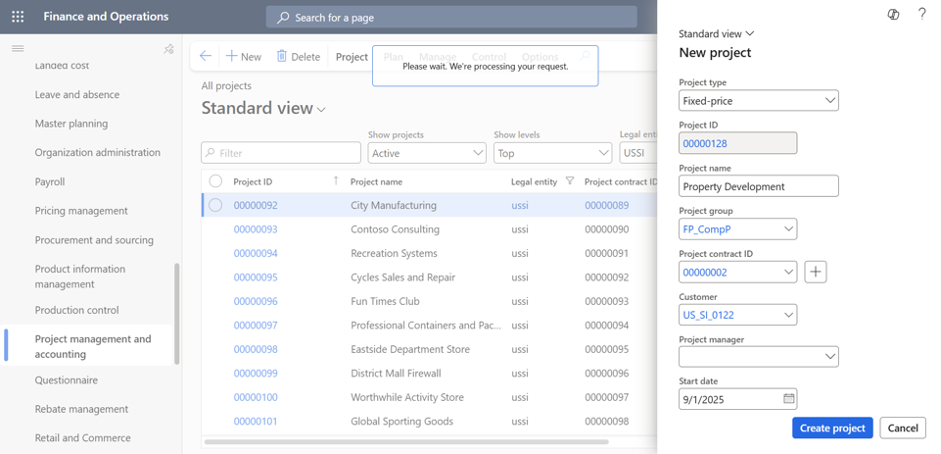
Click Create project, and the system automatically initializes the necessary links between contracts, budgets, and accounting parameters.
Assigning Resources
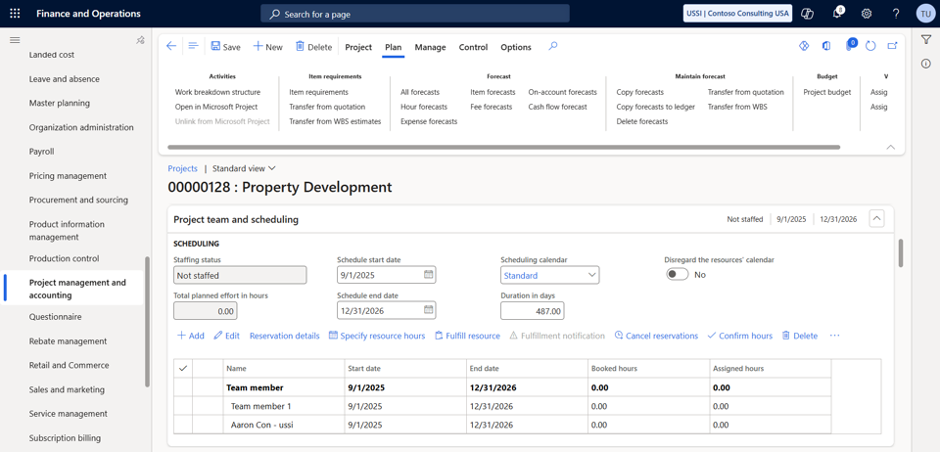
Under the Team tab, select Add to open the Project Team and Scheduling form. From here, project managers can:
- Assign roles based on skills or availability
- Check resource calendars
- Hard book a resource or allocate by percentage capacity
This streamlined process helps managers quickly build balanced teams and align capacity with project demand.
Creating and Managing Project Teams
Roles play a central part in maintaining structure. Once roles are defined, they can be assigned to project tasks within the work breakdown structure (WBS). Multiple roles can exist per task, each automatically labeled during resource reservation to prevent overlap.
Project managers can then match each role with an available resource who meets the requirements. This simplifies collaboration and ensures accountability across the entire project timeline.
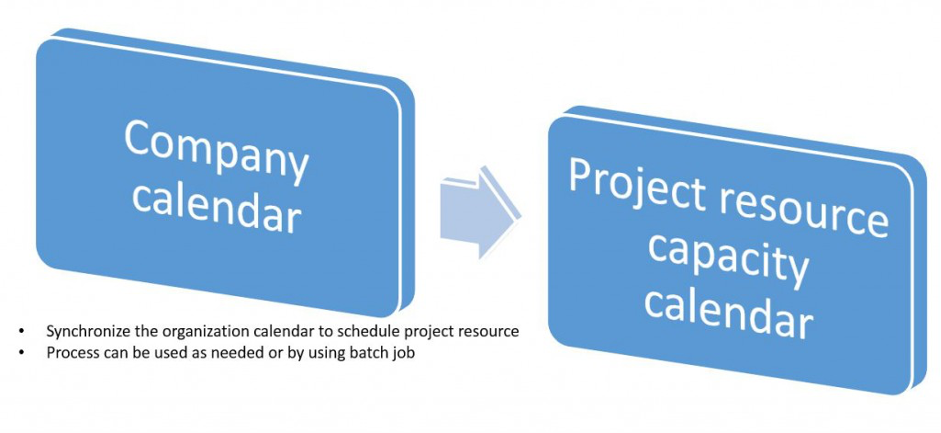
Synchronizing Resource Capacity
When calendars or schedules are updated, Microsoft Dynamics 365 F&O automatically synchronizes those changes across all related project resources. This ensures that every task, booking, and allocation reflects current availability.
The synchronization process also improves system performance by pre-updating resource data in advance. As a result, calendar changes flow smoothly into active project schedules without manual intervention.
Why Microsoft Dynamics 365 F&O Stands Out
Compared to standalone project management software tools, Microsoft Dynamics 365 F&O combines operational precision with financial oversight. It allows organizations to:
- Configure and manage working calendars
- Align project stages with approval workflows
- Match resources based on real-time availability and skills
- Generate accurate quotations and budgets
- Track progress from start to finish
This unified approach helps businesses improve forecasting, streamline approvals, and reduce administrative effort.
Final Thoughts
For organizations running complex, multi-department projects, Microsoft Dynamics 365 F&O delivers structure and control that most traditional project management software can’t match. From setting up calendars and assigning resources to managing project stages and quotations, it connects every operational detail with real-time financial data.
By using these built-in tools, project managers can plan more confidently, allocate resources more effectively, and deliver projects on time and on budget.
Need help setting up your first D365 project from start to finish? Let SysBrilliance guide your implementation for maximum efficiency.
Our next article continues the setup process with WBS creation, budgets, and time entry configuration.